Quick Start Guide
Coffee & Code LLC ·Get up and running with Stuffolio in minutes — no perfect records required.
The goal: Track what you own so you can find manuals and DIY help, manage warranties, and make confident decisions about your stuff.
Adding Your First Item
Start simple. You can always add more details later.
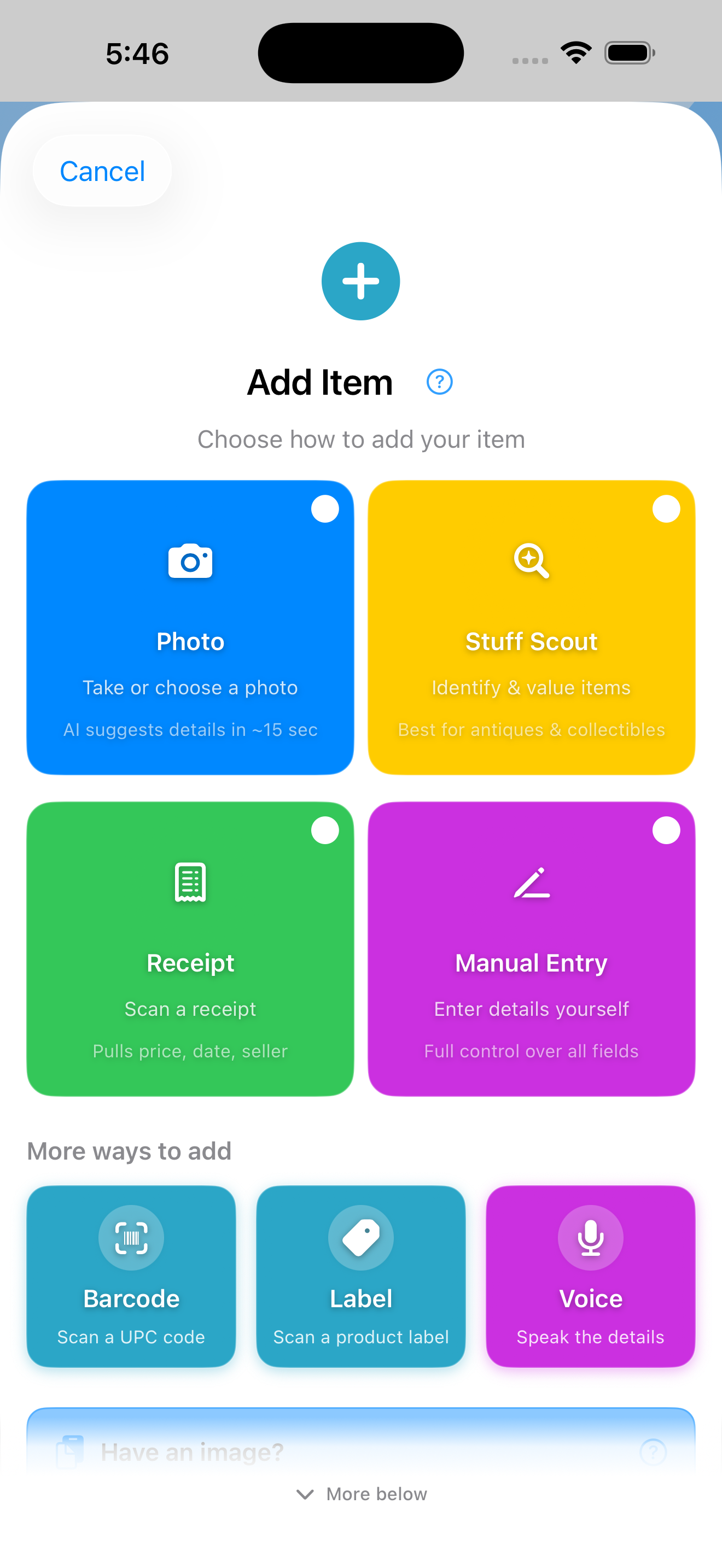
- Tap the + button in the toolbar (or open the app for the first time — the chooser appears inline on your home screen until you have items)
- Pick how to add. Four primary tiles cover the most common entries:
- 📷 Photo — Take or choose a photo. AI identifies your item and fills in details automatically (subscribers)
- 🔍 Stuff Scout — Full AI analysis with pricing and history
- 🧾 Receipt — Snap a receipt; OCR extracts store, date, and price
- ✏️ Manual Entry — Type details yourself
- Or pick from "More ways to add" — three additional entries below the main tiles:
- 📱 Barcode — Scan a UPC code for product lookup
- 🏷️ Label — Photograph a nameplate; extract brand, model, and serial
- 🎤 Voice — Speak naturally: "Add coffee maker to kitchen, manufacturer Cuisinart, price 99 dollars"
- Fill in what you know:
- Title — What is it?
- Category — Electronics, Furniture, Tools, etc.
- Purchase Date — When did you get it? (use "Approximate" toggle if unsure)
- Price or Current Value — What you paid or what it's worth today
- Save it. Done. Add more details anytime.
💡 Faster than you'd think: Photo, Receipt, and Voice all skip most of the typing. Take a photo and the form appears immediately while AI works in the background. Scan a receipt and the store, date, and price arrive pre-filled. Tap Voice and just say what you bought.
💡 Paste & Drop accelerator: Got an image on your clipboard? The Paste button is always visible at the bottom of the chooser. On iPhone and iPad, you can also drag an image directly from Photos into the drop zone. 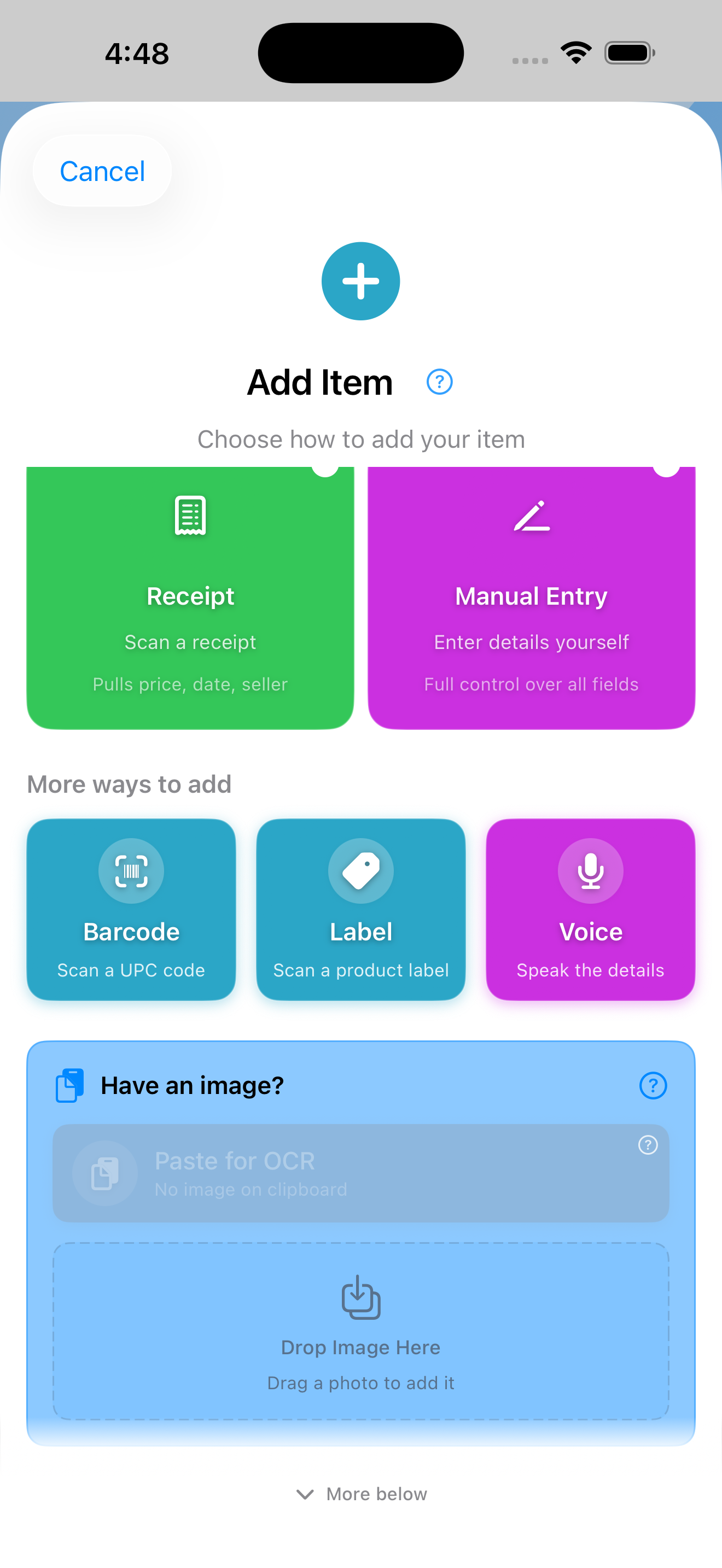
Now Try What Makes Stuffolio Different
You've added your first item. Now experience the features no other inventory app has:
- Try Stuff Scout: Point your camera at something you can't identify. Stuff Scout tells you what it is, what it's worth, and finds the manual.
- Add warranty phases: On your item, expand "Coverage Phases" and add the different coverage tiers (full coverage, parts only, etc.). Stuffolio alerts you before coverage changes.
- Rate a product: Give any item 1-5 stars and mark "Would Buy Again." Your ratings become your personal buying guide.
These are the features you can't get elsewhere. They turn a simple inventory into a decision-making tool.
Your Dashboard — Your Home Base
The Dashboard is your actionable home base. Instead of just showing a list of recent items, it surfaces what needs your attention and gives you quick paths to action.
🔔 Needs Attention
See what requires action at a glance: expiring warranties, overdue maintenance, past-due loans, and flagged items. Each row is tappable.
⚡ Quick Actions
Circular buttons for common tasks: Add items, use AI identification, open Stuff Scout, or scan a barcode.
🧭 Explore Features
Grid of shortcuts to powerful features: Insights, Reports, Categories, Locations, Legacy Wishes, Recalls, Loans, and Backup.
📦 View All Items
Always-visible link to your full inventory. The Dashboard focuses on what needs attention — tap here when you want to browse everything.
💡 Tip: Each Dashboard section has a (?) help button. Tap it to learn what that section does without leaving the screen.
The Three Stages
Stuffolio organizes items by where they are in their lifecycle:
🛒 Acquire
Items being added. Capture basics now, details later.
🏠 Own
Active inventory. Track warranties, locations, and notes.
📦 Let Go
Sold, donated, recycled, or trashed. Keep a clean history.
Key Features
🛡️ Warranty Tracking
Track coverage types, phases, and get reminders before coverage changes.
📄 Manuals & Docs
Link to online manuals or let AI find them for you.
🔍 Stuff Scout
Identification for thrift finds, collectibles, and "what is this thing?" Stuff Scout uses AI to identify items from a photo. Choose your scan depth: Quick ID (~15s), With Pricing (~25s), or Full Appraisal (~40s). Results auto-save to Recent Scans and are cached for 30-day offline access.
✨ Scout Refinement
Re-analyze existing items from the Edit view. Scout uses your form data as context for smarter analysis. Radio button selection: Keep current, Use Scout's finding, or Enter custom value.
🔗 Receipt Pairing
Identify with Stuff Scout, add receipt photo — store, date, and price auto-fill.
🎤 Voice Input
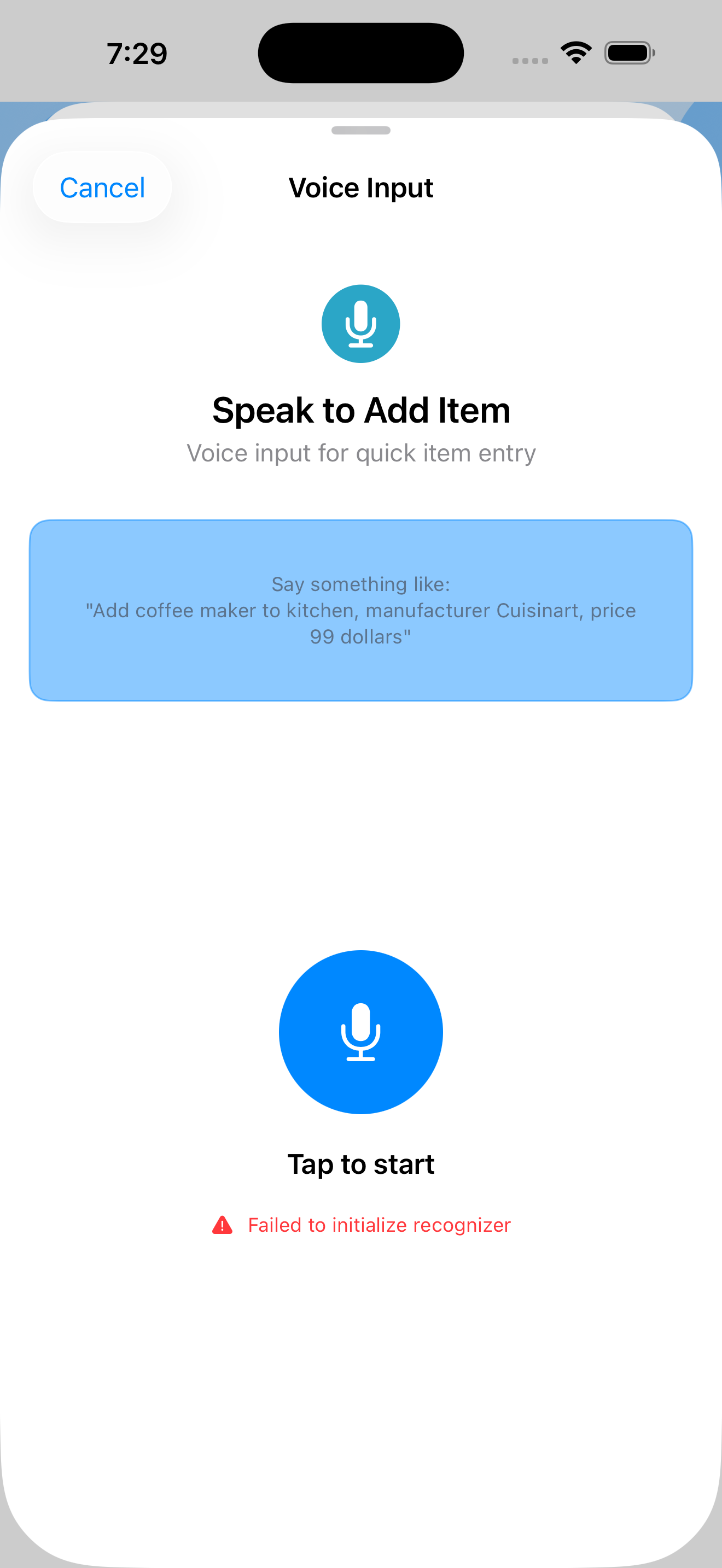
Voice is a first-class entry method now. Tap Voice in the Add Item chooser and speak naturally — "Add coffee maker to kitchen, manufacturer Cuisinart, price 99 dollars" — and Stuffolio parses title, room, brand, price, model, and serial. Or use the mic button next to Product Name inside any Add or Edit form.
📊 Documentation Export
Export your inventory in PDF, CSV, or Excel format for your records or to share with your insurance agent.
🎁 Disposal Tracking
Record donations with values for tax deductions.
☁️ iCloud Sync
Optional sync across iPhone, iPad, and Mac.
🔎 Spotlight & Handoff
Search your inventory from anywhere on your device, and pick up on another one where you left off.
⌨️ Keyboard First
Press ⌘K for the command palette. Navigate anywhere in two keystrokes — features open directly.
⭐ Product Ratings
When something wears out or breaks, know whether to buy the same brand or switch. Rate items 1-5 stars and track "Would Buy Again" for smarter future purchases.
🔧 Smart Maintenance
Category-based reminders for oil changes, filter replacements, and seasonal prep.
🔄 Multi-Device Editing
Edit on iPhone, iPad, and Mac. Sync conflicts show both versions — you decide what to keep.
🏠 Household Sharing
Create a household and share items with real-time sync. Viewer, Editor, or Admin permissions. See who added each item.
🎁 Legacy Wishes
Document who should receive your belongings. Assign recipients from Detail or Edit views.
🔗 Clickable Source Links
Tap source links in Recent Sales to view original eBay, Etsy, or other marketplace listings.
📦 RMA Tracking
Track warranty claims from start to finish: RMA numbers, claim status, shipping labels, and resolution timeline.
📞 Support History
Log customer support calls: rep names, case numbers, what was promised, and follow-up dates. Never start from scratch.
🗣️ Siri Shortcuts
Voice control your inventory. "Hey Siri, add item to Stuffolio" or create custom automations.
📤 Send to Apps
Quickly send item details to Notes, Calendar, or Reminders. Create warranty expiration events or maintenance reminders with one tap.
📈 Value Snapshots
Track how your inventory value changes over time. Automatic snapshots capture value history for trends and insurance.
✅ Audit Mode
Verify your physical inventory matches your records. Walk through your home marking items as "Found."
Disposing of Items
When you're ready to let something go:
- Open the item's detail view
- Tap the action menu (•••)
- Select Dispose of Item
- Choose how: Sold, Donated, Gifted, Recycled, Returned, Trashed, Lost, or Stolen
Disposed items move to your Archive — you can still view them for reference, insurance claims, or tax documentation.
💡 Lost or Stolen? Mark items as Lost or Stolen to keep records for insurance claims. Track dates, circumstances, police report numbers, and claim status.
Privacy First
Your inventory stays on your device by default. The online features below ask before they send anything, and you can turn any feature off in Settings:
- Network & Online — iCloud sync, recall checker, UPC lookup, AI assistant
- Search & Siri — Spotlight Search, Handoff, Siri Shortcuts
- Device Features — Focus Filters
- Activity & Data — Activity history, crash reporting
Go to Settings → Preferences to see all 12 opt-in features at a glance and enable only what you want.
Tips for Success
- Start simple — Add items with just a title and a few details, enhance later
- Use categories — Makes searching and filtering easier
- Take photos — Visual reference helps identify items
- Set warranty dates — Get notified before coverage expires
- Enable coverage alerts — Turn on Coverage Phase Changes in Settings to get notified before Full → Parts Only transitions
- Use Scout Refinement — Added an item quickly? Edit it later and use Stuff Scout to fill in details
- Review periodically — Update your inventory as things change
Need more help? Check out Support for FAQs and troubleshooting, or email support@stuffolio.app.
Go Deeper
Ready for more? Our detailed documentation covers every feature in depth.
📖 Full User Manual
Complete reference for all features, step-by-step instructions, and troubleshooting.