Stuffolio User's Manual
Your Personal Product Manager
Version 3.4 | May 2026 — synced with Stuffolio Build 35
Press / to search, Esc to close
Introduction
Stuffolio is a comprehensive product management app that helps you track everything you own. This manual provides step-by-step instructions for using every feature on iPhone and iPad.
Requirements
| Device | Minimum Version |
|---|---|
| iPhone | iOS 17.0+ |
| iPad | iPadOS 17.0+ |
Pricing at a Glance
Stuffolio is free to download; the four AI features come with a free count-based allowance at install (no time limit), then a small free amount every month, with an optional $3.99/month or $19.99/year subscription for unlimited use. See Pricing, AI Allowance, and Subscription for the full breakdown.
Navigation Overview
iPhone
- Use the tab bar at the bottom of the screen
- The Home tab is organized around Three Phases: Acquire (Add Item, Barcode Scan, Photo Quick Add, Stuff Scout), Maintain (warranty status, maintenance, recalls, Price Watch, Borrowed & Lent), and Move On (Legacy Wishes, Donation, Repair-Keep-Replace, Disposal)
- Additional tabs: My Items, Actions, Stuff Scout, Settings
- Access Legacy Wishes and Insights from the More menu or the Home tab's Move On phase
iPad
- Use the sidebar on the left side of the screen
- Tap the sidebar icon (☰) to show or hide the sidebar
- Sections include: Dashboard, My Items, Actions, Insights, Stuff Scout, Legacy Wishes, Settings
Pricing, AI Allowance, and Subscription
Stuffolio is free to download. That covers inventory, warranties, Decision Memory, repair-keep-replace decisions, donation tracking, Legacy Wishes, Household sharing, exports, iCloud sync, and the rest of the lifecycle product. The base app does not require a subscription, ever.
Stuffolio's four AI features call paid AI services per use, so they have a separate optional subscription: $3.99/month or $19.99/year. The subscription exists so the people who use AI cover the cost, and so the people who never touch it never pay for it.
Your Free Allowance at Install
When you install Stuffolio, you get a free allowance for each of the four AI features. There's no time limit and no clock — the free amount is a count, not a countdown, so it's yours to use whenever you like:
- Stuff Scout: 5 free items
- AI Product Assistant: 10 free searches
- Receipt & Label Scans (OCR): 5 free scans
- Repair-Keep-Replace alternatives: 5 free looks
The four counters are independent, not pooled. Running out of Stuff Scout items doesn't touch your AI Assistant searches, and so on. Pace yourself however suits you — install today, use one item, come back three weeks later, and the rest of your allowance is still waiting.
After Your Allowance Is Used Up
If you don't subscribe, each AI feature keeps a small free amount every calendar month, refilling on the 1st (these don't stack — each month starts fresh):
- Stuff Scout: 1 free item / month
- AI Product Assistant: 2 free searches / month
- Receipt & Label Scans (OCR): 1 free scan / month
- Repair-Keep-Replace alternatives: 1 free look / month
A feature only moves to its monthly amount after its starting allowance is fully used — features you've barely touched keep their original allowance.
If you subscribe, all four AI features run with unlimited use within fair-use bounds. The bounds are designed to be far above any normal usage pattern, so most subscribers will never see them. The qualifier exists so the cap that does exist (for runaway or commercial-scale use) doesn't surprise anyone.
Seeing Your Quota
Your remaining quota is visible from the moment you start using AI, not just at exhaustion:
- On each AI feature's entry point — a small "X of N remaining" indicator (or a "Subscribe" cue once that feature is used up for the month).
- In Settings → Subscription Status — all four counters listed separately, plus the next monthly refill date.
- On the AI Product Assistant view — a session counter alongside the remaining-searches counter, so you can see how fast a single research session is burning your quota.
If You Run Out
When a feature's quota hits zero, Stuffolio names what you used (e.g., "You've used your 5 free Stuff Scout items"), names the price, and names the next free affordance (the monthly refill date for that feature). The choice is yours: subscribe, wait for next month's free amount, or keep using the rest of the app.
↑ Back to ContentsActions Overview
The Actions section organizes tools into six categories to help you find what you need quickly.
Tool Categories
| Category | Description | Tools |
|---|---|---|
| Capture | Scan and import products | Smart Scanner, CSV Import |
| Export | Export and share reports | Inventory Report (PDF, CSV, Excel) |
| Decisions | Valuation and planning | Stuff Scout, Price Watch, Donation Advisor |
| Data | Backup and restore | Backup Data, Restore Data |
| Safety | Recalls and product help | Recall Checker, AI Assistant |
| Maintenance | Clean up and organize | Verify Inventory, Photo Optimizer, Duplicate Finder, Clean Up Records, Bulk Price Update, Batch Categorize |
Getting Started
First Launch
When you open Stuffolio for the first time:
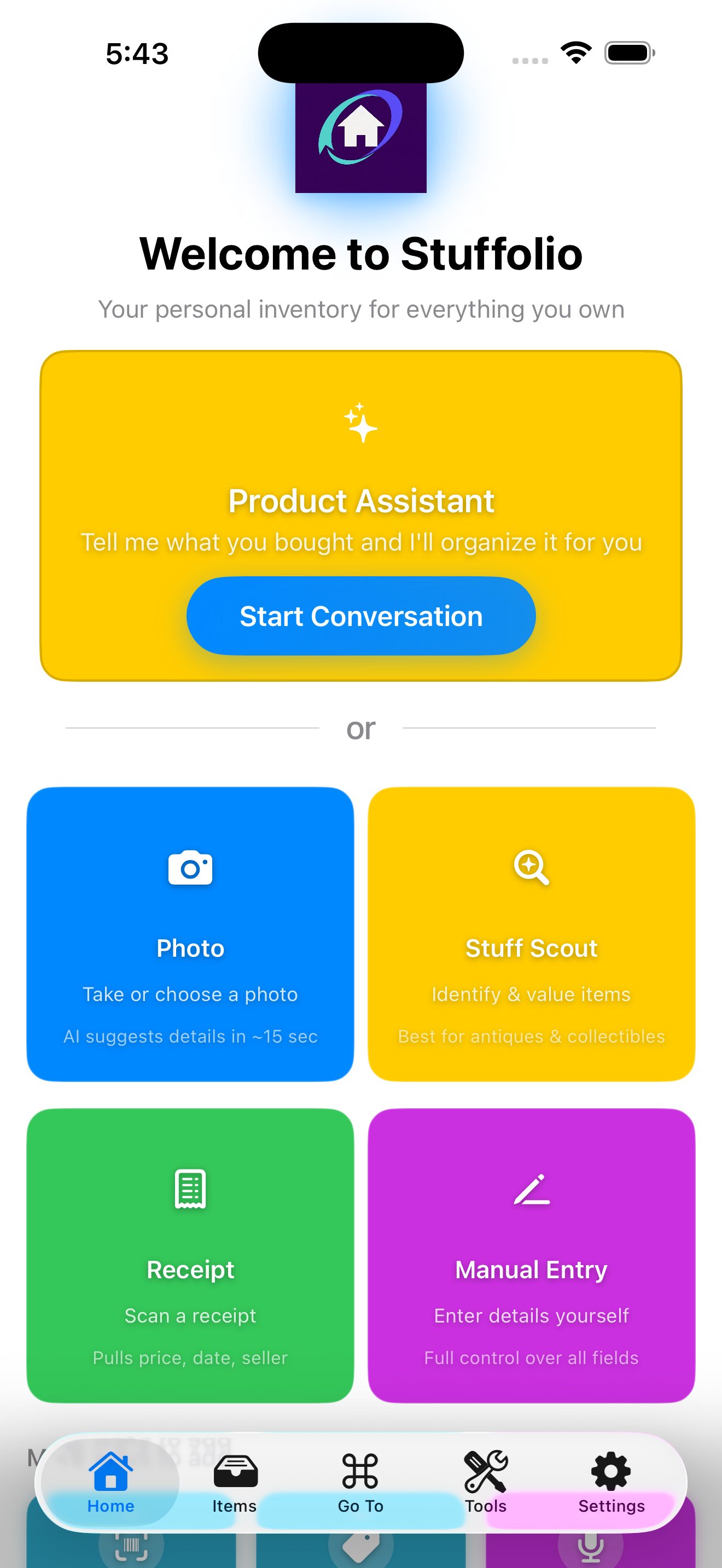
- Welcome Screen appears. Before you have any items, the home screen embeds the Add Item chooser inline so you can start adding right away — no extra navigation.
- Swipe through any introduction screens or tap Skip
- Tap Get Started to enter the app. The first thing you'll see is the inline Add Item chooser on your home screen until you've added your first item.
That's the whole thing. Stuffolio doesn't open with a wall of permission requests, because most of them wouldn't mean anything yet. Instead it asks for each one at the moment you first need it: the camera when you photograph an item or scan a barcode, the microphone when you first use Voice entry, notifications when you switch on your first reminder. Grant or deny each one as it comes up.
Not getting your reminders?
Setting a reminder inside Stuffolio isn't the same as giving the app permission to show you notifications. If notifications are switched off for Stuffolio, a “Reminders can't be delivered” notice appears right where you set reminders — on the warranty form and on the maintenance suggestions screen — with an Open Settings button that takes you straight to the right place to turn them on.
Understanding the Home Tab (iPhone)
The Home tab on iPhone is organized around Three Phases — the lifecycle of your stuff. The right tool is in reach at the right moment, and nothing else gets in the way.
🛒 Acquire
Everything you reach for when something new enters your life. Fast paths, front and center:
- Add Item — Opens the chooser. Seven entry methods (Photo, Stuff Scout, Receipt, Manual Entry, Barcode, Label, Voice) plus Paste/Drop accelerator
- Stuff Scout — AI identification for antiques, collectibles, thrift finds, and anything else you're not sure about
- Scan Barcode — Direct shortcut to UPC lookup for retail products
Example: You come home from a garage sale with something unusual. Tap Stuff Scout right from Home, snap a few photos, and get an identification and value range before you even put it down.
🛠️ Maintain
What you own day-to-day. This phase surfaces only what needs attention — not a wall of inventory:
- Warranty status cards for items with coverage expiring soon
- Overdue and upcoming maintenance tasks
- Recall checks run against CPSC and manufacturer feeds when you ask for them
- Price Watch notifications when a replacement cost shifts significantly
- Borrowed & Lent entry point — see what you've lent out or borrowed, and who has what
Example: If nothing needs attention, Maintain stays quiet. When your coffee maker's warranty is 29 days from expiring, a card appears here with one tap to view the item.
📤 Move On
When it's time to sell, donate, archive, or pass something along. One tap away:
- Legacy Wishes — Assign items to people in your life (the "who gets what" conversation)
- Donation Tracking — Record donations with fair market value for tax records
- Repair, Keep, or Replace — Decision support from the AI Assistant when something breaks
- Disposal — Mark items as sold, donated, gifted, or discarded, with a reason trail
Example: You're downsizing before a move. Move On surfaces the decision tools in one place instead of buried in a menu.
Understanding the Dashboard (iPad & Mac)
On iPad and Mac, the Dashboard shows inventory summaries and what needs your attention:
Quick Stats Bar (at the top)
- Swipe left/right to see: Total Items, Purchase Cost, Current Value, Fun Fact
- Tap the chevron (⌄) to collapse this section
Needs Attention
- Items with warranties expiring in 30 days
- Overdue maintenance tasks
- Items on loan that are due back
- Items missing important information
Recently Added
- Your most recently added items
- Tap any item to view its details
Feature Cards
Quick access to: Stuff Scout, Smart Scanner, AI Assistant, Recall Check, Reports, Value Calculator
↑ Back to ContentsAdding Your First Item
Opening the Add Items Menu
iPhone
- Tap the My Items tab at the bottom
- Tap the blue + button in the bottom-right corner
- The Add Items chooser appears
iPad
- Tap My Items in the sidebar
- Tap the + button in the toolbar (top of screen)
- The Add Items chooser appears
Choose How to Add
The Add Item chooser offers seven entry methods, organized into two tiers plus an always-visible accelerator strip. Pick any of them — they all route into the same form, and you can switch methods mid-entry.
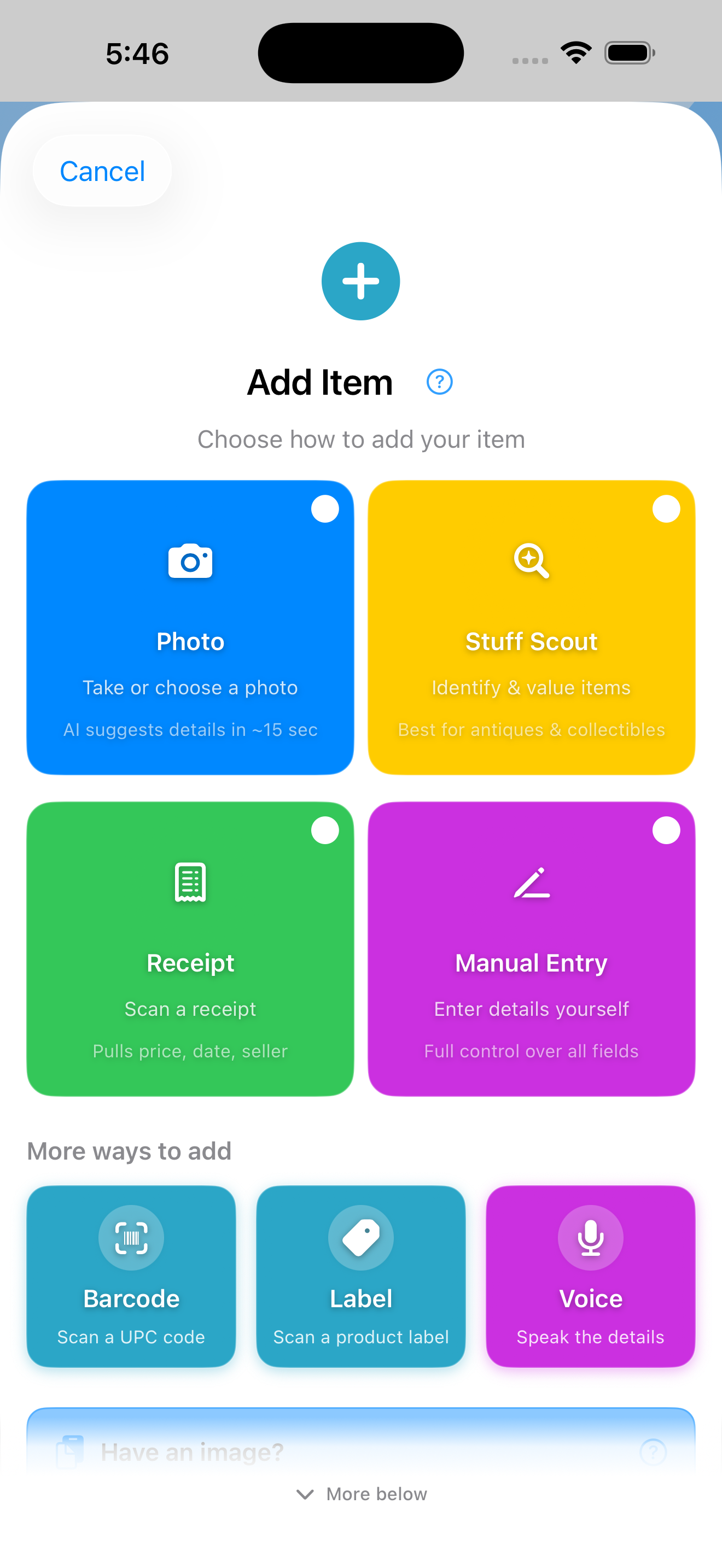
On iPhone, the chooser scrolls vertically. The Primary tier is visible immediately; swipe up to see "More ways to add" and the Paste/Drop accelerator. A "⌄ More below" hint appears at the bottom edge while there's more to reveal.
Primary tier
The four tiles you see first:
- 📷 Photo — Take or choose a photo. AI automatically identifies your item and fills in details while the form appears instantly (subscribers).
- 🔍 Stuff Scout — Full AI analysis: identification, pricing, history, and comparable listings. Best for collectibles and "what is this thing?"
- 🧾 Receipt — Photograph a receipt. OCR extracts store, date, and price into the form before you start typing.
- ✏️ Manual Entry — Type all details yourself.
More ways to add
Three additional entries below the primary tier:
- 📱 Barcode — Scan a UPC barcode for quick product lookup.
- 🏷️ Label — Photograph a nameplate; OCR extracts brand, model number, and serial number.
- 🎤 Voice — Speak naturally: "Add coffee maker to kitchen, manufacturer Cuisinart, price 99 dollars." Voice parses title, room, brand, price, model, and serial.
Paste & Drop accelerator
Always visible at the bottom of the chooser. Skip the picker when you already have an image:
- 📋 Paste image — Tap to paste from your clipboard. Works on iPhone, iPad, and Mac. When the clipboard is empty, the button stays visible but disabled.
- 🖱️ Drop image — Drag an image from Photos, Files, or another app into the drop zone. iOS only for now.
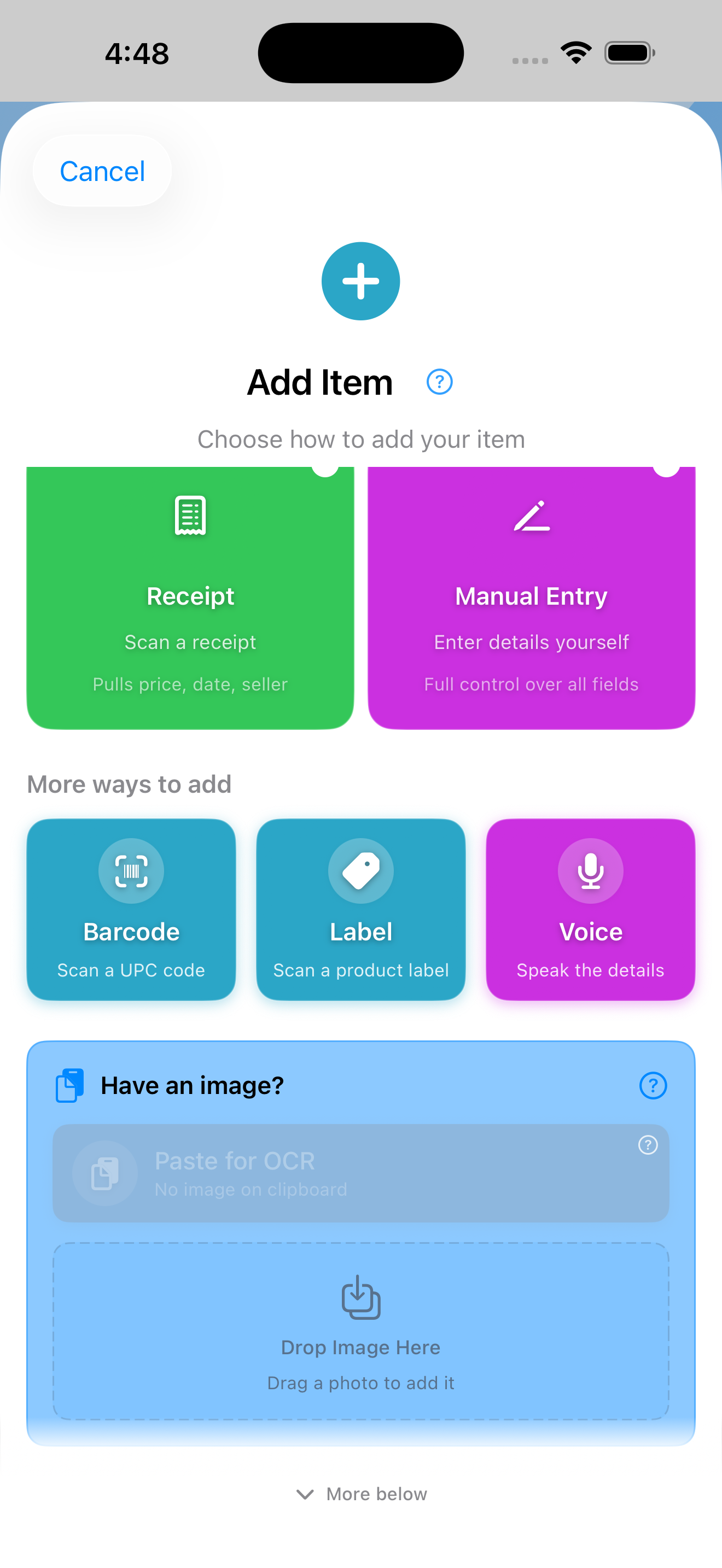
Photo (Recommended)
The fastest way to add items — the form appears immediately while AI works in the background.
- Tap Photo in the chooser
- Choose how to add a photo:
- Take Photo — Use your camera to capture the item
- Choose from Library — Select an existing photo
- Paste from Clipboard — Use a copied image
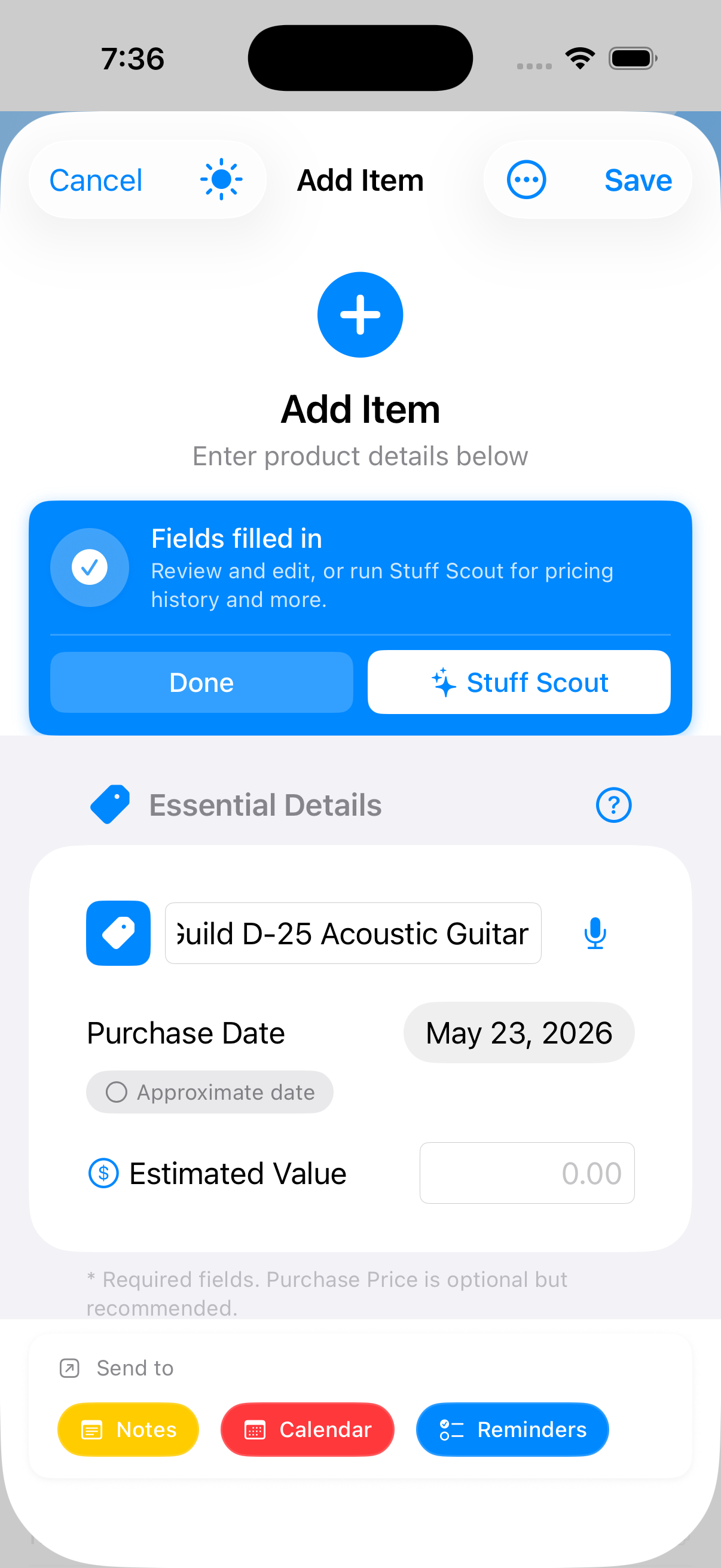
- The form appears immediately with your photo attached
- For subscribers: AI fills in title, manufacturer, and estimated value automatically
- Start editing other fields while AI works — no waiting
Stuff Scout
Full AI analysis. Covered in detail in Using Stuff Scout later in this manual.
Receipt
Snap a receipt and let OCR fill in the store, date, and price before you type anything.
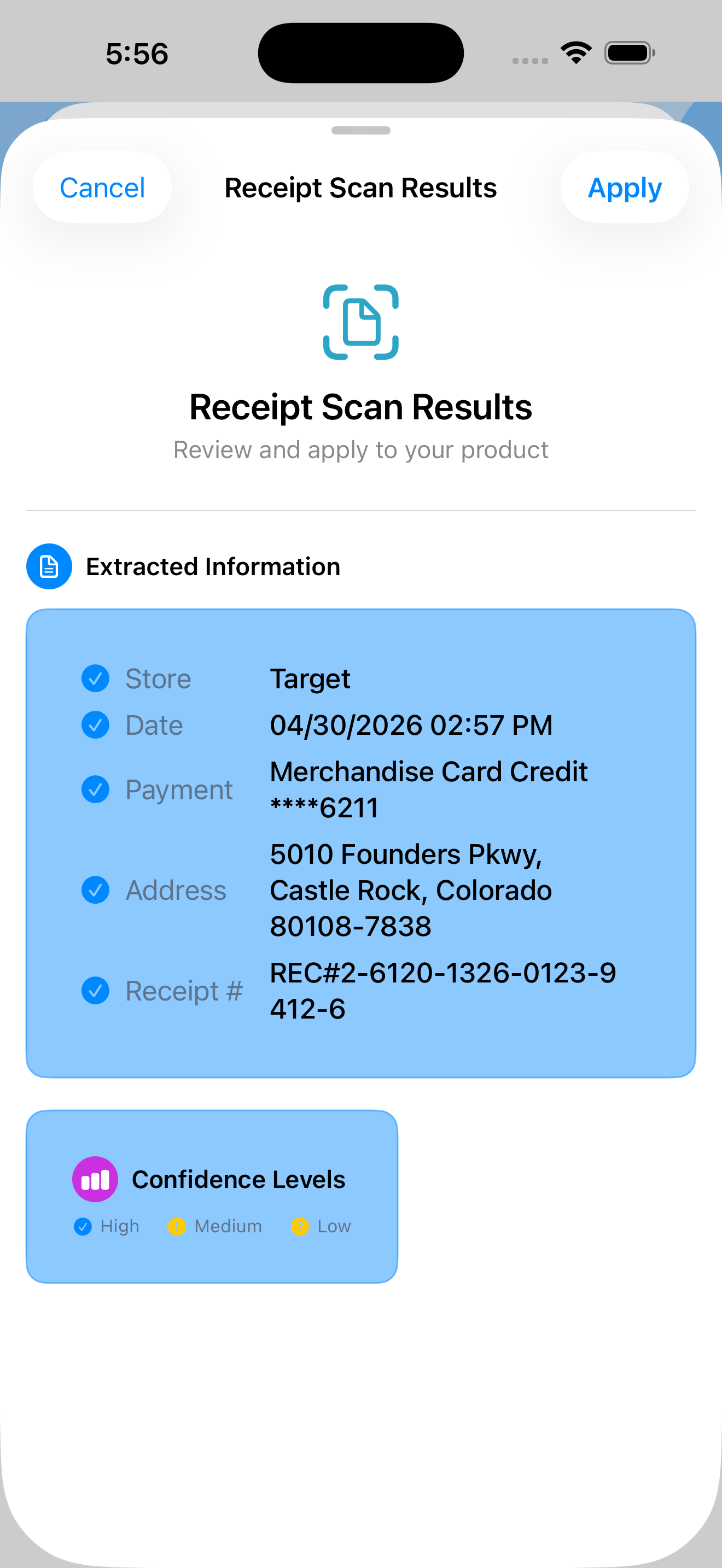
- Tap Receipt in the chooser
- Photograph the receipt. Make sure the store name, date, and total are visible and in focus.
- OCR pre-fills the Retailer, Purchase Date, and Purchase Price fields
- Add the Product Name and any other details you want, then Save
Manual Entry
- Tap Manual Entry in the chooser
- The Add Item form opens with no fields pre-filled
- Fill in the details (see "Filling Out the Add Item Form" below)
Barcode
- Tap Barcode in the "More ways to add" tier
- Point your camera at the UPC barcode
- Product information fills in automatically
Label
Photograph a nameplate to extract brand, model number, and serial number without typing.
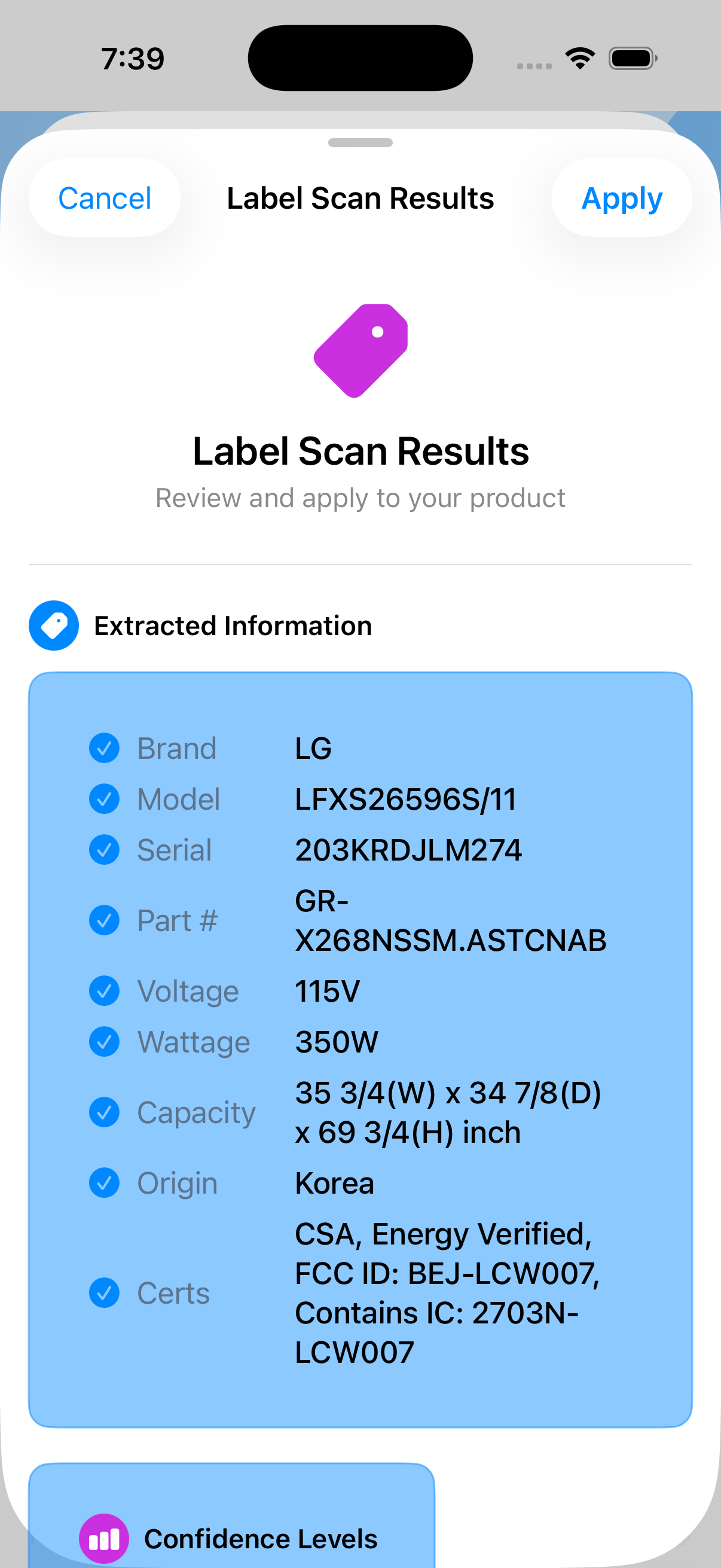
- Tap Label in the "More ways to add" tier
- Photograph the product's nameplate, model sticker, or maker's mark
- OCR extracts brand, model number, and serial number into the form
- Add any remaining details and save
Voice
Hands-free entry. Speak the item details and Stuffolio parses them into form fields.
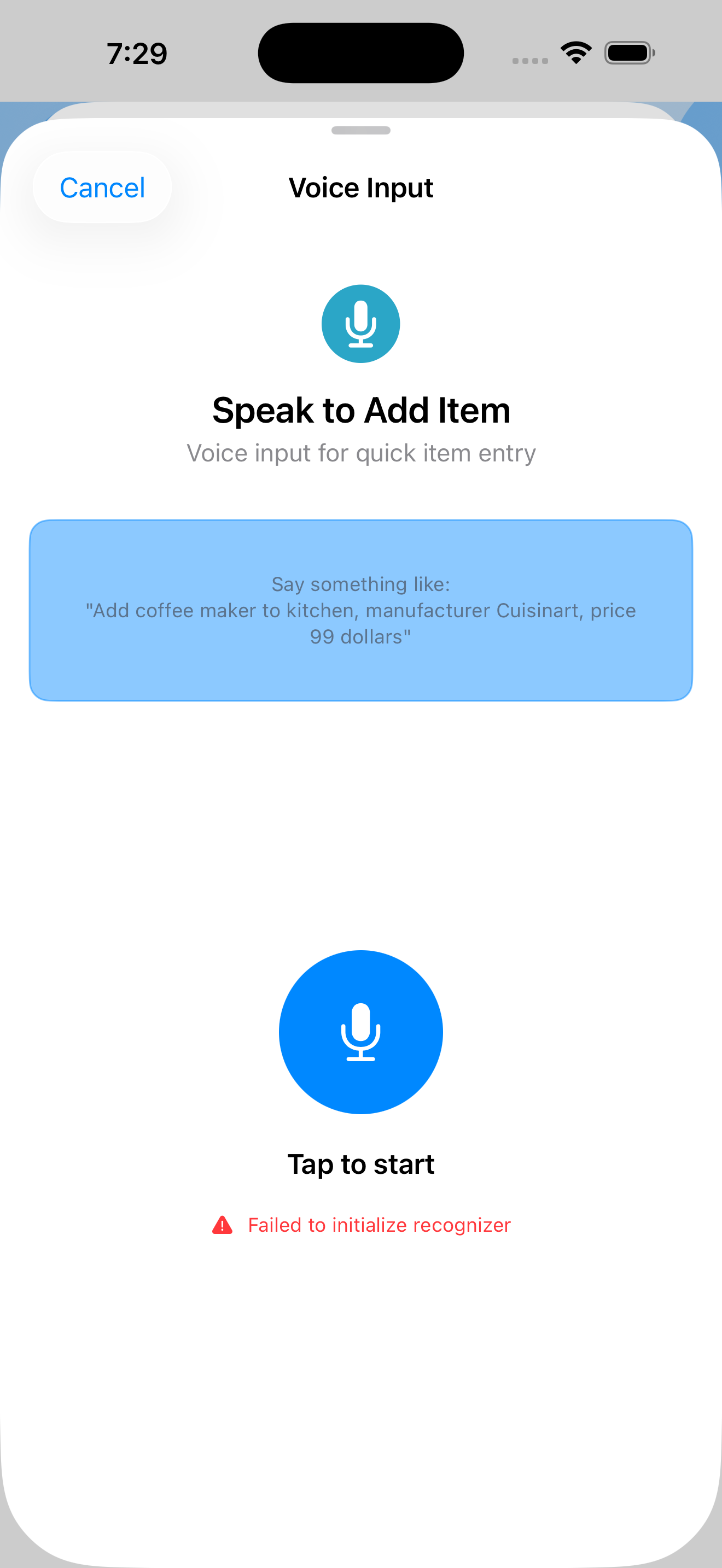
- Tap Voice in the "More ways to add" tier
- First time only: a tip sheet shows example phrasings. Tap Got it to continue.
- Speak naturally. Example: "Add coffee maker to kitchen, manufacturer Cuisinart, price 99 dollars"
- Voice parses title, room, manufacturer, price, model, and serial into form fields
- The form appears with those fields filled in. Review, adjust anything misheard, and save.
Paste & Drop shortcuts
If you already have an image (a screenshot of an Amazon order, a saved photo, an image you copied from a website), you can skip the picker entirely.
- Paste — Copy an image to your clipboard, then tap the Paste button in the chooser. The image becomes the item's first photo and the form opens.
- Drop — Drag an image from Photos, Files, or another app into the drop zone at the bottom of the chooser.
Filling Out the Add Item Form
The form has these fields (only Product Name is required):
Step 1: Enter Basic Information
- Product Name (Required) — Tap the text field, type the product name (e.g., "Samsung 65-inch TV")
- Manufacturer — Tap the text field, type the brand name (e.g., "Samsung")
- Model Number — Enter the model number from the product label
- Serial Number — Enter the serial number (important for warranty claims)
Step 2: Choose a Category
- Tap the Category field
- A picker appears with 20+ categories: Electronics, Appliances, Furniture, Tools, Automotive, Sports, Kitchen & Dining, Personal Care, Antique/Collectable, Recreation (boats, RVs, ATVs, and other recreational vehicles), and more
- Scroll and tap to select the appropriate category
- The picker closes automatically
Step 3: Set Location
- Tap the Location field
- Type where the product is stored (e.g., "Living Room", "Garage")
Step 4: Enter Purchase Information
- Acquisition Type — Select how you got this item: Purchased New, Purchased Used, Inherited, Gifted, Found/Salvaged, or Not Specified. The form adapts based on your choice — gifts hide the price field, inherited items show provenance options
- Purchase Date — Tap the date field, scroll to select month, day, and year, tap Done
- Purchase Price — Enter the amount you paid (hidden for gifts and inherited items)
- Additional Costs (Optional) — Shipping, taxes, accessories, or modifications. Stuffolio calculates your total investment automatically
- Retailer (Optional) — Enter where you bought it
Step 5: Enter Warranty Information
- Warranty Expiration Date — Select the date your warranty ends
- Warranty Type — Tap to select: Standard, Extended, or Lifetime
- Warranty Notes (Optional) — Add any coverage details
Step 6: Add Notes
- Tap the Notes field
- Type any additional information (e.g., "Gift from Mom", "Bought on sale")
Step 7: Save the Item
- Review all entered information
- Tap the Save button (top-right corner)
- The item is added to your inventory
- You return to the My Items list
Adding Photos to Items
Photos help identify products and serve as documentation for warranty claims. Stuffolio can also analyze your photos to automatically suggest categories and extract product details like brand, model, and serial number.
Quick Start Photo Options
When adding a new item, the Quick Start section at the top offers fast ways to add photos with intelligent analysis:
- Tap Add Photo in Quick Start
- Choose a photo from your library or take a new one
- A Photo Assessment screen appears showing:
- Preview of your selected photo
- Quality assessment (blur, resolution, text detection)
- Suitability indicators for each analysis type
Three Analysis Options
| Option | What It Does | Best For |
|---|---|---|
| Suggest Category | Uses on-device AI to identify the product type | Product photos showing the item clearly |
| Extract Details | Uses cloud OCR to read text and fill form fields | Receipts, labels, nameplates with visible text |
| Just Add Photo | Adds the photo without analysis | Any photo you want to keep |
Understanding Suitability Indicators
- Good match — Photo is well-suited for this analysis
- May work — Analysis might succeed, but results may vary
- Poor match — Photo unlikely to yield good results (e.g., blurry or no text detected)
Extract Details (OCR Auto-Fill)
The Extract Details option can automatically populate form fields by reading text from your photo:
What It Extracts
- Brand/Manufacturer — From product labels or receipts
- Model Number — From nameplates or packaging
- Serial Number — From product labels
- Purchase Price — From receipts
- Purchase Date — From receipts
- Store/Retailer — From receipts
How to Use
- Select a photo showing a receipt, label, or nameplate
- Tap Extract Details
- Wait for OCR processing (requires internet)
- Extracted fields are automatically filled in the form
- Review and edit as needed
- Photograph labels and receipts straight-on (not at an angle)
- Ensure good lighting with no shadows on text
- Get close enough that text is clearly readable
- For receipts, capture the full receipt including store name and date
Voice Input (Hands-Free Entry)
Voice Input lets you add items without typing. Speak naturally and Stuffolio parses your words into form fields. Voice input works in both Add Item and Edit Item forms.
Finding the Mic Button
The microphone button appears in two locations:
- Next to Product Name — A blue mic icon appears directly beside the Product Name field for quick access
- Quick Start section — Also available in the expandable Quick Start card at the top of the form
First-Time Tip
The first time you tap the mic button, a helpful tip sheet appears showing example commands and supported fields. Tap Try It to proceed, or Close to dismiss. The tip only appears once.
How to Use Voice Input
- Tap the microphone button (next to Product Name or in Quick Start)
- Grant microphone and speech recognition permissions (first time only)
- Tap the mic icon to start recording
- Speak naturally, including any details you want to add
- Review the parsed fields in the preview
- Tap Use This Input to apply fields to the form
Example Voice Commands
- "Add coffee maker to kitchen, manufacturer Cuisinart, price 99 dollars"
- "Add Samsung TV to living room, model QN65S95D"
- "Add iPhone 15 Pro, brand Apple, serial number ABC123"
Recognized Fields
| Field | How to Say It |
|---|---|
| Title | "Add [item name]" or "Adding [item name]" |
| Room/Location | "to kitchen", "in the garage", "to office" |
| Manufacturer | "manufacturer Apple", "brand Samsung", "by Sony" |
| Price | "$99", "99 dollars", "price 1299" |
| Model Number | "model ABC123", "model number XYZ" |
| Serial Number | "serial ABC789", "serial number XYZ" |
| Category | Keywords like "electronics", "furniture", "tools" — vehicle keywords like "bicycle", "bike", and "scooter" route to the Vehicles category |
From the Add/Edit Item Screen
- Scroll to the Photos section
- Tap the camera icon or Add Photo button
- A menu appears with options
Option A: Take a New Photo
- Tap Take Photo
- The camera opens
- Point at your item
- Tap the shutter button to capture
- Review the photo:
- Tap Retake to try again
- Tap Use Photo to add it
- The photo appears in the Photos section
Option B: Choose from Photo Library
- Tap Choose from Library
- Your photo library opens
- Browse albums or use search:
- Tap Albums to browse by album
- Tap the search icon and type to find photos
- Tap a photo to select it
- Optionally crop the image:
- Drag corners to adjust
- Tap Done when finished
- The photo appears in the Photos section
Option C: Scan a Document
- Tap Scan Document
- The document scanner opens
- Position the receipt/document in view
- The scanner automatically detects edges
- Tap the shutter or wait for auto-capture
- Adjust corners if needed by dragging
- Tap Keep Scan
- Tap Save when done scanning
Managing Existing Photos
To view a photo full-screen: Tap any photo thumbnail. Pinch to zoom. Tap outside or swipe down to close.
To delete a photo: Tap the photo to select it, tap the trash icon, confirm deletion.
To reorder photos: Touch and hold a photo, drag to new position, release to drop.
Photo Types to Add
- Product Photo — Main image showing the product
- Receipt — Proof of purchase for warranty claims
- Label/Nameplate — Shows model and serial numbers
- Warranty Card — Coverage documentation
- Packaging — UPC barcode and specifications
Using the Smart Scanner
The Smart Scanner reads barcodes to automatically fill in product information.
Opening the Smart Scanner
iPhone
- Tap the + button on the My Items screen
- Tap Smart Scanner
iPad
- Go to Actions in the sidebar
- Under Acquire, tap Smart Scanner
Step 1: Scan the UPC Barcode
- The camera view appears with a targeting rectangle
- Point your camera at the UPC barcode on the product packaging
- Hold steady 6-12 inches away
- When detected:
- You hear a beep
- The barcode number appears on screen
- Product lookup begins automatically
- Ensure good lighting (avoid shadows on the barcode)
- Make sure the barcode isn't wrinkled or damaged
- Hold the phone parallel to the barcode (not at an angle)
- Clean your camera lens if scanning fails repeatedly
Step 2: Scan Additional Barcodes (Optional)
- Tap Scan Model/Serial
- Point at barcodes on the product itself (not packaging)
- The scanner identifies the barcode type
- Information fills automatically
- Tap Done when finished, or Skip to continue
Step 3: Review and Edit
- A form appears with auto-detected information
- Review each field — tap to edit if incorrect
- Add purchase information (date, price, warranty)
Step 4: Save the Item
- Verify all information is correct
- Tap Save in the top-right corner
- The item is added to your inventory
Batch Scanning Mode
Batch Scanning lets you scan multiple barcodes in succession and save all items at once — perfect for adding multiple products quickly.
Opening Batch Scanner
iPhone
- Tap the + button on the My Items screen
- Tap Batch Scan
iPad
- Go to Actions in the sidebar
- Under Acquire, tap Batch Scanner
Step 1: Scan Multiple Barcodes
- The camera view appears with a targeting rectangle
- Point your camera at a UPC barcode
- Hold steady 6-12 inches away
- When detected:
- You hear a beep
- The barcode is added to the scanned list
- Camera remains active for the next scan
- Move to the next item and scan its barcode
- Continue scanning as many items as needed
- The app automatically prevents duplicate scans of the same barcode
- If you scan the same item twice, you'll see a "duplicate" indicator
- Products already in your inventory show as "already owned"
- Scan in good lighting for best results
Step 2: Review Scanned Items
Tap the review button or swipe up to see your scanned items list.
Each item shows:
- Product name — Retrieved from UPC database
- Manufacturer — Brand name
- Photo thumbnail — Product image (when available)
- Status indicator:
- Found — Product info successfully retrieved
- Looking up — Still fetching product data
- Not found — UPC lookup failed
Managing Scanned Items
To remove an item from the batch:
- Swipe left on the item
- Tap Delete
- The item is removed from the list
To retry a failed lookup:
- Tap the item with Not found status
- Tap Retry Lookup
- The app attempts to fetch product data again
To edit an item before saving:
- Tap the item in the list
- Review the auto-filled information
- Edit any fields as needed
- Tap Done to return to the batch list
Step 3: Save All Items
- Review your scanned items list
- Tap Save All at the bottom of the screen
- All items are added to your inventory at once
- A confirmation message shows how many items were added
- You return to the My Items list
What Happens When You Save
When you tap Save All:
- All items with successful lookups are added to your inventory
- Items with failed lookups are added with just the barcode number
- You can edit these items later to add missing information
- Duplicate items are automatically skipped
- Use Batch Scanning when adding items from a shopping trip
- Great for inventorying a whole room or category
- You can add purchase date and price after saving by editing items individually
- For best results, scan products with visible UPC barcodes
Multi-Photo Capture
Multi-Photo Capture allows you to take multiple photos in one session and assign them all to a product — ideal for documenting items with photos, receipts, and nameplates.
Opening Multi-Photo Capture
- Open an item's detail view (or the Add Item screen)
- Scroll to the Photos section
- Tap the camera icon or Add Photo button
- From the menu, tap Multi-Photo Capture
Step 1: Select Photo Type
Before taking photos, choose what you're capturing:
- Product — Main product photos showing the item
- Receipt — Proof of purchase documents
- Nameplate — Labels showing model and serial numbers
- Tap the photo type selector at the top of the screen
- Select your desired type
- All photos taken will be tagged with this type
Step 2: Take Multiple Photos
- The camera view appears
- Frame your subject
- Tap the shutter button to capture
- The photo is added to your capture session
- The camera stays active for the next photo
- Continue taking as many photos as needed
- Use good lighting — natural light works best
- Hold the device steady or use a surface for support
- For receipts, lay them flat and avoid shadows
- For nameplates, get close enough to read text clearly
- Take multiple angles of items for complete documentation
Step 3: Review Photo Thumbnails
At the bottom of the screen, you'll see thumbnails of all captured photos.
- Swipe horizontally to browse all photos
- Tap any thumbnail to preview it full-screen
- Pinch to zoom on the preview
- Tap outside or swipe down to return to capture mode
Managing Photos in the Session
To remove a photo:
- Find the photo in the thumbnail strip
- Tap the X button on the thumbnail
- Confirm deletion
- The photo is removed from the session
To change photo type:
- Tap and hold a photo thumbnail
- A context menu appears
- Select Change Type
- Choose: Product, Receipt, or Nameplate
- The individual photo's type is updated
Photo Type Context Menu
Long-press any photo thumbnail to access:
- Preview — View full-screen
- Change Type — Re-categorize the photo
- Remove — Delete from session
Step 4: Save All Photos
- Review your captured photos
- Tap Save All or Done
- All photos are attached to the item
- Photos are organized by type in the item's detail view
Using Photo Types
Photo types help organize and identify your images:
| Type | Best For | Examples |
|---|---|---|
| Product | Visual identification | Front view, side view, item in use |
| Receipt | Proof of purchase, warranty claims | Store receipt, online order confirmation, invoice |
| Nameplate | Technical information | Serial number sticker, model label, spec plate |
iPad
On iPad, the multi-photo interface is optimized for the larger screen with a side-by-side layout showing the camera and photo gallery simultaneously.
- Adding a new high-value item with multiple documentation needs
- Capturing all angles of an antique or collectible
- Photographing receipts and warranty cards together
- Documenting serial numbers and model information
- Any time you need to take more than one photo at once
Using Stuff Scout (AI Assistance — When You Ask)
Stuff Scout uses AI to identify antiques, collectibles, and unknown items from photos. Stuffolio's AI is user-initiated and non-ambient — nothing is analyzed or sent to external services unless you explicitly ask for help.
Opening Stuff Scout
iPhone
- Tap the + button on My Items
- Tap Stuff Scout
iPad
- Go to Actions in the sidebar
- Under Acquire, tap Stuff Scout
Or from the Dashboard, tap the Stuff Scout feature card.
Step 1: Capture Photos
Taking a New Photo:
- Tap Take Photo
- Position the item in good lighting
- Capture the main view of the item
- Tap Use Photo
Choosing from Library:
- Tap Choose from Library
- Select a clear photo of the item
- Tap to select
Step 2: Add Additional Photos (Recommended)
For better identification, add multiple photos:
- After the first photo, tap Add Another Photo
- Capture different angles:
- Maker's Mark — Signatures, stamps, or labels
- Bottom/Back — Often has identifying marks
- Details — Close-ups of unique features
- Damage — Any wear or repairs
- You can add up to 5 photos
Step 3: Choose Scan Depth
Before starting analysis, select how thorough you want Stuff Scout to be:
- Quick ID (~15 seconds) — Fast identification only. Best for when you just need to know what something is.
- With Pricing (~25 seconds) — Identification plus marketplace verification and current value estimates. Recommended for most items.
- Full Appraisal (~40 seconds) — Complete analysis including historical context, provenance research, condition assessment, and detailed valuation. Best for antiques, collectibles, and potentially valuable items.
✍️ Pre-Scan Context (Optional)
Before you tap Identify, the capture screen offers a collapsible card labeled "What do you know about this item?" Tap to expand it and type anything you already know — provenance, maker's marks you can read, a date stamped on the back, a brand name printed on the box.
Story-First Refinement also exists after a scan, but pre-scan context is the cheaper path when you have details up front. Feeding Scout "Ernst Roth violin, 1945, Markneukirchen" before the first analysis often produces a more accurate result on pass one than scanning blind and refining afterward. Skip it entirely for everyday items where you have nothing to add — the field is optional.
Step 4: Start Identification
- Review your photos at the bottom of the screen
- Tap the Identify button
- Wait while AI analyzes (time depends on your selected scan depth)
Background Processing
You don't need to keep the app open while Stuff Scout analyzes your photos:
- After tapping Identify, you can switch to another app or lock your device
- Analysis continues in the background
- When complete, you'll receive a notification: "Stuff Scout Complete"
- Tap the notification to view your results
Background Results Inbox
Completed background scans collect in a dedicated Background Results sheet you can open from the Stuff Scout screen. Each completed scan represents a paid quota item, so the sheet has a confirmation alert before Clear All wipes the list — no one-tap purge of background work you paid for. Tap an individual result to open its full Scout view, or swipe a single row to remove it without affecting the others.
If Analysis Fails
Scout analysis can fail for transient reasons — flaky Wi-Fi, a brief worker hiccup, a request that took too long. The error alert now offers a Try Again button that re-runs analysis on the same photos without making you re-capture or re-navigate. The retry is suppressed for quota-related errors, since waiting for your refill (not retrying immediately) is the right move there.
Step 5: Review Results
The results screen shows:
- What It Is — Description of the item
- Maker/Manufacturer — Who made it
- Era — Approximate age or period
- Country of Origin — Where it was made
- Estimated Value Range — Low to high market value
- Rarity — Common to Extremely Rare
🎯 Confidence Gate
After every fresh scan, Scout asks "Is this right?" with three paths:
- Yes, that's it — Save the result as-is and continue to Add to Inventory.
- Almost, I can add more — Opens the refinement flow (see Story-First Refinement below).
- No, that's not it — Start over with a different approach — different photos, better angles, or a fresh identification attempt.
The Confidence Gate exists so you never accept a wrong answer by default. Scout won't stop asking until you tell it the identification is correct.
When you open a saved scan from Scout History or follow a deep link to a past result, the gate is hidden — there's no live refinement to launch from a historical view, so the prompt would just be a dismiss trap.
✍️ Story-First Refinement
When you choose "Almost, I can add more," a large text area invites you to describe what you know in plain language:
- "This belonged to my grandfather, might be from the 1940s"
- "Bought at an estate sale in rural Pennsylvania"
- "The stamp on the bottom looks German to me"
Structured fields — maker's mark, serial number, era, model number — are collapsed as optional extras below the text area. Fill them in only if they help. Story first, form fields second.
🧠 Context Veracity
Scout evaluates your notes critically, not as gospel:
- Specific facts (artist names, serial numbers, museum attributions, patent dates) are verified against visual evidence.
- Speculative guesses ("I think it might be old," "looks like something from the 1800s") are treated as hypotheses to investigate, not facts to accept.
The effect: speculation won't push Scout off course. You can write freely without worrying that a wrong guess will derail the identification.
📜 Refinement History
As you refine, Scout tracks how each round of added context changed the identification and valuation. After refining, you can see:
- What Scout got right on the first pass
- What changed after you added context
- How your notes shifted the value range or narrowed the era
Each refinement uses 1 AI Assistant search from your allowance. Refinement History is your record of what the AI figured out on its own vs what you contributed.
🛍️ Category-Specific Valuation
Price verification routes to the right marketplaces based on what the item is — apples-to-apples comparisons, not generic listings:
- Instruments — Checks instrument marketplaces for guitars, violins, synths, pro audio gear
- Collectibles & Antiques — Checks eBay sold listings for dinnerware, figurines, memorabilia
- Vintage Goods — Checks Etsy for handmade and vintage items
- Vehicles — Checks vehicle-specific sources (KBB-style pricing for RVs, boats, motorcycles)
Scout picks the marketplace that matches your item's category so the value estimate reflects what it would actually sell for.
💲 Asking vs. Sold Prices
Scout's pricing display distinguishes two different market signals so you can read them correctly:
- Asking prices — What sellers are currently listing the item for. Useful to see the current shelf reality, but asking prices include unsold items that may never move at that price.
- Sold prices — What buyers actually paid in completed transactions. The more reliable signal for "what would this realistically sell for."
When both are available, Scout shows them side-by-side with source attribution (which marketplace each number came from). When only one is available — common for niche categories — Scout names which one it is so you're never reading an asking price as if it were a sold price.
Confidence Floor and Hybrid Floor
Scout will refuse to display a price when there aren't enough comparable listings to support a defensible number. Instead of inventing a confident-sounding estimate from one or two cherry-picked listings, you'll see an honest "not enough comps to value this with confidence" note and the option to refine the search with additional context. This is the confidence floor.
The hybrid floor handles the middle case: when sold-price data is too thin to stand alone but asking-price data is plentiful, Scout falls back to a wider range derived from both signals, clearly labeled as such. The floor exists so you never see a single-source point estimate dressed up as a market price.
Graded Coin Extraction
For coins and graded collectibles, Scout reads the grading-company designation and numeric grade from your photos (e.g., PCGS MS-65) and matches against comps with the same grading. A 1921 Morgan Dollar in PCGS MS-65 is a completely different market from the same coin raw or in a lower grade; Scout's pricing reflects that distinction instead of averaging across grades.
🎯 Curate the Comps (Tier 1 Filter)
Scout shows you the comparable sales it used to build the estimate. Sometimes one or two of those comps clearly don't belong — a damaged piece, a different model, a parts-only listing. The Tier 1 filter lets you exclude individual comps and watch the estimate re-aggregate from the pool you kept.
How to exclude a comp:
- Long-press any row in Recent Sales, then tap Exclude from estimate.
- VoiceOver: Use the Actions rotor on the row and select Exclude from estimate.
Excluded comps move to a desaturated Excluded (N) subsection just below the Recent Sales list, so the audit trail of what you removed stays visible. To put a comp back, long-press the excluded row and choose Restore to estimate, or tap Restore all at the top of the Excluded section.
The filtered estimate panel. As soon as you exclude one comp, a blue "Your filtered estimate" panel appears between the Recent Sales list and the story sections. It shows: how many comps you kept ("Using 8 of 10 comps you kept"), the recomputed low-to-high range, and the median. Three result shapes:
- Range — 6 or more comps kept. Full percentile band, same math as Scout's headline estimate.
- Approximate — 3 to 5 comps kept. Range collapses to a median with the caveat "Approximate — few comps remaining."
- Too few comps — fewer than 3 kept. Estimate hides with "Need at least 3 comps to estimate — restore one to continue." Scout won't show a number it can't defend, even on a curated pool.
Save filtered estimate. When you've been working from an existing item (Scout Refinement, not a fresh scan), the panel includes a Save filtered estimate button. It appends the filtered range to that item's price history with a note recording which comps you excluded — so you can reconstruct the decision later.
🔬 Research Tips
Scout suggests specific starting points for deeper research — forums, subreddits, reference databases, YouTube channels — matched to your item's category. For a vintage camera, that might include r/AnalogCommunity and CameraQuest. For a violin, the Maestronet forums. Starting points, not a walled garden.
Saving & Sharing Results
After Stuff Scout identifies your item, you can save and share the results:
- Copy Individual Sections — Tap the copy button next to any section (identification, pricing, history) to copy that text
- Export Full Report — Tap Share to export the complete report via Messages, Mail, or any sharing app
- Value Auto-Update — Scout valuations automatically flow to your item's market price records, keeping value tracking current
Step 6: Save to Inventory
- Tap Add to Inventory
- A preview sheet appears showing the pre-filled item details
- Optional: Add a receipt photo (see Receipt Pairing below)
- Tap Add to Inventory to open the full form
- Add any additional information
- Tap Save
Receipt Pairing (Optional)
Pair your Stuff Scout result with a receipt to auto-fill purchase details:
- In the Add to Inventory preview, look for the Purchase Receipt section
- Tap Add Receipt Photo
- Capture or choose a photo of your receipt
- Stuffolio extracts store name, purchase date, and price
- Verify the extracted data, then continue to save
Auto-fill from Receipt
If you've already attached receipt images to an item, you can extract purchase details without re-scanning:
- Open the item and tap Edit
- Look for the Auto-fill from Receipt button in the Images section
- Tap it to have Stuffolio analyze your attached receipt images
- Review the extracted store name, purchase date, and price
- Tap Save to apply the changes
Auto-Cached Recent Scans
Stuff Scout automatically saves your last 25 scans so you never lose an identification. Every time you complete a scan, it's automatically stored — no extra steps required.
- Automatic saving — Scans are saved as soon as analysis completes
- Last 25 scans kept — When you exceed 25, the oldest scan is automatically removed
- No action needed — Just scan and your results are preserved
Scout History
Access all your past Stuff Scout identifications in Scout History, organized into two tabs:
Recent Tab
Shows your auto-cached scans (last 25):
- View any recent scan by tapping it
- Swipe right on a scan to bookmark it permanently
- Tap Clear All to remove all recent scans
Bookmarks Tab
Shows scans you've saved permanently:
- Bookmarks never expire or get automatically deleted
- Full data preserved: image, identification, maker, era, value range, historical context, collector notes
- Add your own notes and tags to organize your collection
- Swipe left to delete individual bookmarks
Searching Scout History
Use the search bar at the top to find scans by:
- Item identification (e.g., "Fiesta dinnerware")
- Maker or manufacturer
- Era or time period
Viewing Scout Results from Item Detail
Items added to your inventory via Stuff Scout retain a link to the original analysis. You can view the full Scout results at any time without re-scanning:
- Open any item in Item Detail
- If the item was added via Stuff Scout, you'll see a Stuff Scout section
- Tap View Scout Results to see the original analysis
- The full results appear, including:
- Identification and confidence level
- Value estimates and recent sales data
- Historical context and provenance
- Collector notes and market demand
Browsing Your Items
Accessing My Items
iPhone Tap My Items in the bottom tab bar
iPad Tap My Items in the sidebar
Understanding the Item List
Each item row shows:
- Photo thumbnail — Item image (or category icon)
- Item name — In bold
- Manufacturer — Below the name
- Warranty status badge:
- Active — Warranty currently valid
- Warning — Expiring within 30 days
- Expired — No longer covered
- Lifetime — Lifetime warranty
Item Detail: Tappable "—" Placeholders
When you open an item, reference rows (serial number, model number, purchase date, etc.) display their value on the right. If the value is missing, you'll see — instead of a blank row.
Tap the — placeholder to jump directly into editing that field. You don't have to open the full edit form and scroll to find it — the placeholder itself is the entry point.
Filtering Items
- Swipe horizontally on the filter chips at the top
- Tap a filter to apply: All, Active, Expiring, Expired, Lifetime, No Warranty, Flagged
- Tap again to remove the filter
Flagging Items for Review
Flag items you want to focus on — perfect for batch editing, adding missing details, or creating a “working set” of items to review.
To flag an item:
- Long-press any item in the list
- Tap Flag for Review in the context menu
- An orange flag icon appears on the item
To remove a flag:
- Long-press the flagged item
- Tap Remove Flag
To view only flagged items:
- Tap the Flagged filter in the filter bar
- Choose Flagged Only to see just your flagged items
Use cases:
- Mark items that need photos added
- Flag items missing warranty information
- Create a “to-do” list of items needing attention
- Temporarily group items for a specific task
Filter Presets
Save custom filter combinations for one-tap filtering:
Creating a Filter Preset:
- On the My Items screen, apply one or more filters
- Tap the Save Filter button (bookmark icon) that appears
- Name your preset (e.g., "Expiring Electronics", "Bedroom Items", "High Value")
- Tap Save
Using Filter Presets:
- Swipe to the end of the filter chips
- Your saved presets appear with a bookmark icon
- Tap any preset to instantly apply that filter combination
Managing Presets:
- To edit a preset: Long-press it and select Edit
- To delete a preset: Long-press it and select Delete
- To reorder presets: Long-press and drag to rearrange
- "Expiring Electronics" — Category: Electronics + Warranty: Expiring Soon
- "Garage Tools" — Category: Tools + Location: Garage
- "High Value Items" — Value: Over $500
Sorting Items
- Tap the sort button (↑↓) in the toolbar
- Select: Date Added, Name, Purchase Date, Warranty Expiration, or Value
Searching for Items
- Pull down on the item list to reveal the search bar
- Tap the search field
- Type your search term
- Results appear as you type
- Tap Cancel or swipe down to dismiss
Recent Searches
Stuffolio remembers your recent search terms for quick access:
- When you tap the search field, your recent searches appear below
- Tap any recent search to instantly search for that term again
- Your most recent searches appear first
- To clear search history: Long-press the search field and select Clear Recent Searches
Voice Search
Use dictation to search for items by voice:
- Pull down to reveal the search bar
- Tap the search field
- Tap the microphone icon on your keyboard
- Speak your search term (e.g., "vacuum cleaner", "Samsung TV")
- Results appear automatically when you finish speaking
Using Quick Actions (Swipe)
Swipe gestures on item rows provide quick access to common actions:
Swipe Left:
- Delete (red) — Remove the item from your inventory
- Archive (gray) — Archive without deleting (keeps in history)
Swipe Right:
- Edit (blue) — Open the item for editing
- Log Service (green) — Record maintenance or service performed
Using Log Service
The Log Service quick action lets you quickly record maintenance, repairs, or service on an item:
- Swipe right on an item
- Tap Log Service (green button)
- Enter:
- Service Type — Maintenance, Repair, Cleaning, etc.
- Date — When the service was performed
- Cost (Optional) — Amount paid for service
- Notes — Details about what was done
- Tap Save
Service history is tracked in the item's detail view under the Service History section.
Context Menu (Long Press)
- Touch and hold any item for 1 second
- A menu appears: Edit, AI Assistant, Duplicate, Copy, Share, Flag for Review/Remove Flag, Delete
- Tap your desired action
Selecting Multiple Items
- Tap Select in the toolbar
- Tap items to select them (checkmarks appear)
- Use toolbar buttons: Delete, Export
- Tap Done when finished
Rating Your Items
Track your satisfaction with items and remember whether you'd buy them again — perfect for making future purchasing decisions.
Adding a Rating
- Open any item
- Tap Edit
- Scroll to the Rating section
- Tap the stars to set your rating (1-5 stars)
- Toggle "Would Buy Again" on or off
- Add optional notes about your experience
- Tap Save
Understanding the Rating System
| Stars | Meaning |
|---|---|
| ★☆☆☆☆ | Poor — Disappointed with this item |
| ★★☆☆☆ | Fair — Below expectations |
| ★★★☆☆ | Good — Meets expectations |
| ★★★★☆ | Very Good — Exceeds expectations |
| ★★★★★ | Excellent — Outstanding item |
"Would Buy Again" Decision Memory
This feature helps you remember which items are worth repurchasing:
- Thumbs Up (✓) — You'd definitely buy this again
- Thumbs Down (✗) — You wouldn't repurchase this item
- Not Set — You haven't decided yet
When shopping, you can quickly check if an item was satisfactory before buying the same brand or model again.
Viewing Ratings
From My Items:
- Ratings appear on item cards as star icons
- Items you'd buy again show a small checkmark badge
- Filter by rating using the Filter menu
- Sort by rating to see your favorites first
Using the AI Product Assistant
The AI Product Assistant has a small, useful job: it organizes what you already own, points at trusted external resources for the product in front of you, and captures the work you do as you do it. It is not a diagnosis, not a substitute for a service call, and not a recommendation to repair or replace.
Opening the AI Assistant
- From an Item: Open the item, tap AI Assistant
- From My Items: Swipe right on an item, tap AI Help
- Long-press: Hold an item and select AI Assistant
Query Types
| Query | What It Finds |
|---|---|
| Find Manual | Official product manual/user guide |
| Find Warranty Info | Warranty terms, registration page |
| Find Parts | Replacement parts and where to buy |
| Find Supplies | Consumables (filters, bags, batteries) |
| Troubleshoot | An optional symptom field ("Describe what's happening") lets you type what you're seeing in your own words. The assistant restates your words at the top of the result, then lists common problems with source attribution, points at the manufacturer's troubleshooting guide, and surfaces relevant pages from your own item record (manual, warranty status, prior repair entries). It does not name a likely cause for your specific symptom. Leave the field empty for a generic overview of the product's failure modes. |
| Maintenance Tips | Care instructions and schedules |
| How-To Videos | Tutorial videos for using the product |
| DIY Repair Videos | Repair guides and videos |
| Maker Website | Manufacturer's official website |
| Register Product | Product registration page |
| Set up Product | Combined workflow — fetches Maker Website, Register Product, and Find Warranty in parallel as one tile (counts as one search) |
| Current Price | Pricing signal from the marketplace, framed as "not an appraisal" |
Set up Product (Combined Workflow)
The Set up Product tile runs three sub-fetches at once — Maker Website, Register Product, and Find Warranty — and presents the results stacked in one view with a single Save All button. Use it when you've just added a new item and want to fill in the manufacturer website, registration URL, and basic warranty months in one pass.
- Counts as one search against your trial AI Assistant quota.
- Partial failure handling: if one of the three sub-fetches doesn't return useful results, the other two still render normally and you can retry the failed sub-tile individually (which then reads the other two from cache, costing nothing extra).
- Save All commits all three results to your item record in one tap: manufacturer website and support URL, registration URL, and warranty months. You can correct anything in the item editor afterward.
Honesty Envelope (Layer 1)
Every AI Product Assistant response — especially Troubleshoot results — is wrapped in a three-part honesty envelope so you know what you're reading:
- Sources cited: the trusted external resources the answer was assembled from (manufacturer documentation, support pages, or general web search), with attribution.
- Bounded by: what kind of claim the answer is making — product-knowledge orientation, resource retrieval, compatibility lookup against what you own, or warranty phase check.
- What this is not: a one-line disavowal — typically "not a diagnosis for your specific situation" or "not a substitute for a licensed technician." This is the load-bearing line that keeps the assistant honest at the moment of use.
The envelope is most visible on Troubleshoot results because that's the query type where confident-sounding AI does the most damage. When you type a sentence into the optional symptom field, the assistant restates your words at the top of the result before pointing at anything, so you can verify it understood you and so the rest of the response stays anchored to what you actually described. It will describe common failure modes for your product category, but it will not tell you which one is yours. That decision is yours to make, with the manufacturer's guide and (when needed) a real technician.
Using Results
- Tap any blue link to open in Safari
- Touch and hold text to Copy
- Save to item: When the AI surfaces URLs (manufacturer website, support page, registration page, manual link, supplies page), a save button appears so you can attach them directly to the item's Resources section without retyping.
Smart Auto-Fill: Save Links to Product
When the AI discovers useful URLs, you can save them directly to your item with one tap. This works for all four URL types the AI surfaces:
- Manufacturer website / support URL — saved from Maker Website results
- Registration URL — saved from Register Product results
- Manual URL — saved, picked, or replaced from Find Manual results
- Supplies URL — saved from Find Supplies results (consumables page)
Saved URLs appear in the item's Resources section. The Resources section only shows up once at least one URL is saved (progressive disclosure).
To save a link:
- Run the relevant query (Maker Website, Register Product, Find Manual, or Find Supplies)
- Tap the save button on the result card
- A confirmation appears and the button shows a checkmark
For Find Manual specifically, if the AI surfaces multiple candidate manual URLs you can pick which one to save or replace a previously saved manual URL.
Response Caching (Offline Access)
AI Product Assistant responses are automatically cached for offline access:
- Automatic caching: Every AI response is saved locally for 30 days
- Offline access: Previously fetched responses work without internet
- Instant loading: Cached results for the same item/query load immediately
- Cache badge: Cached responses show a pinned badge with the original fetch date, so you always know whether you're reading a fresh answer or a stored one.
- Staleness hint: When a cached response is more than a week old, the badge surfaces a "may be stale — tap to refresh" hint. The cached answer still loads instantly; you choose whether to spend a search refreshing it.
Managing the Cache:
- Clear item cache: In item detail, tap Clear AI Cache
- Clear all cache: Go to Settings > Data Management > Clear AI Cache
- Automatic cleanup: Expired entries are pruned automatically on app launch
Repair, Keep, or Replace?
A thinking tool — not a shopping funnel. This feature helps you make intentional decisions about your stuff using your own data as the primary source.
Opening Repair, Keep, or Replace?
- From the Dashboard: Tap Keep, Repair, Replace Advisor. The picker lists any owned item (damaged items surfaced first). If you have just one damaged item, it opens the advisor directly without a picker step.
- From an Item: Open the item, tap Tools, select Repair, Keep, or Replace?
- From Rating Insights: Go to Insights > Rating Insights, tap Get Replacement Advice on any item card
- Quick Find: Search for "repair", "keep", or "replace"
What You'll See
| Section | What It Shows |
|---|---|
| Repair Options | iFixit links, repairability scores, DIY difficulty, repair vs. replace cost comparison |
| Lifespan Analysis | Item age, expected lifespan, warranty status, estimated remaining value |
| Brand Intelligence | Your history with this brand — average ratings, would-buy-again rate, other items from same manufacturer |
| AI Alternatives | Optional: fetch alternative products from trusted review sources. Counts as one Repair-Keep-Replace "look" against your free allowance (5 to start, no time limit, then 1 free per month); unlimited with a subscription. |
| Decision Summary | Confidence level and three clear action paths |
Finding Alternative Products
Tap Find Alternatives with AI to search inline. Alternatives are routed by category, not flattened to a generic list:
- Same-ecosystem first for ecosystem-coherent items. A MacBook owner sees Apple alternatives before cross-platform options; cross-ecosystem alternatives appear second and are clearly labeled.
- Specialists instead of products for heirlooms, fashion, and luxury items. The Replace branch is hidden for these categories.
- Grading and restoration impact for collectibles, instead of generic alternatives.
- Budget-bracketed options for commodity items; durability and parts for tools and appliances.
Each recommendation carries source attribution (Wirecutter, RTINGS, Reddit, etc.) with credibility tiers. If the AI is uncertain about your specific model, it surfaces that in a visible notes card above the results.
Confidence Levels
The advisor uses your actual item data — age, warranty status, condition, purchase price, and your history with that brand — to score each recommendation. The more data you provide, the better the advice:
- High Confidence: You've rated the item AND provided lifespan/warranty details
- Medium Confidence: Some data available but not complete
- Exploratory: Limited data — these are options to consider, not firm recommendations
Three Decision Paths
- Repair It: Links to repair guides, estimated repair costs, DIY difficulty assessment
- Keep Using: Set a reminder to check back later, continue enjoying the item
- Time to Replace: View alternatives, consider same brand or explore new options
Behavior by Item Type
Not every item is a candidate for "replace." A grandfather clock doesn't have alternatives in the way a laptop does; a Birkin bag doesn't either. The advisor routes by item category so the recommendation matches what kind of thing you own:
| Category | What you'll see |
|---|---|
| Consumer electronics (laptops, phones, vacuums, TVs) | Same-ecosystem alternatives first (Apple suggestions for Apple items); cross-ecosystem options clearly labeled and shown second |
| Heirloom & sentimental (clocks, jewelry, art, instruments) | Repair specialists and restoration cost guidance. The Replace branch is hidden — these items aren't meant to be swapped out |
| Collectibles (coins, stamps, sports memorabilia) | Grading and restoration-impact guidance. Restoration often reduces value; the advisor surfaces that instead of recommending it |
| Fashion & luxury (designer bags, watches, shoes) | Repair specialist directory. Replace branch hidden by default |
| Commodity replacement (toasters, microwaves, basic tools) | Budget- and size-bracketed options; ecosystem doesn't apply |
| Tools & appliances (drills, mixers, lawnmowers) | Cross-brand alternatives with focus on durability and parts availability |
| Other (books, photos, kitchen utensils) | The Keep, Repair, Replace Advisor isn't shown for these categories |
Research Tips
The feature includes guidance on finding trustworthy reviews:
- Preferred sources: Consumer Reports, Wirecutter, RTINGS, iFixit
- Red flags to watch for (affiliate-heavy language, no hands-on testing)
- How to cross-reference multiple sources
Managing Warranties
Adding Warranty Information
When adding a new item:
- In the Add Item form, scroll to Warranty section
- Tap Warranty Expiration Date and select the date
- Tap Warranty Type: Standard, Extended, or Lifetime
- Optionally add Warranty Notes
For existing items:
- Open the item
- Tap Edit
- Fill in the warranty fields
- Tap Save
Warranty Status Badges
- Active — Warranty currently valid
- Warning — Expiring within 30 days
- Expired — No longer covered
- Lifetime — Permanent coverage
Setting Warranty Reminders
- Go to Settings > Notifications
- Toggle on Warranty Expiring and Coverage Phase Changes
- Set Advance Notice: 7, 14, or 30 days before
Tip: With Coverage Phase Changes enabled, you'll receive notifications before your warranty transitions (e.g., 30 days before Full → Parts Only).
Coverage Types
Different warranties offer different levels of coverage:
| Type | What's Covered | Example |
|---|---|---|
| Full Coverage | Parts + Labor | Factory warranty on new appliance |
| Parts Only | Replacement parts (you pay labor) | Extended coverage years 2-3 |
| Labor Only | Labor costs (you pay for parts) | Service contracts |
| Limited | Specific components only | Powertrain warranty on vehicles |
To set coverage type: Expand the Coverage Phases section, add a coverage phase, and select the appropriate type.
Coverage Phases (Tiered Warranties)
Many warranties change coverage over time. For example, a 5-year appliance warranty might offer:
- Year 1: Full coverage (parts + labor)
- Years 2-3: Parts only
- Years 4-5: Limited coverage
To add coverage phases:
- Expand the Coverage Phases section (it's a top-level section in the form)
- Tap Add Coverage Phase
- Optionally specify a component name (for component-based warranties)
- Select the coverage type for this phase
- Set the start and end dates
- Optionally add a deductible amount
- Tap Save
- Repeat for additional phases
Note: Coverage phases can be added when creating a new item or when editing an existing item.
The detail view shows your current coverage phase and when the next change occurs.
Component-Based Warranties
Some items have different warranty periods for different components. For example, EGO Power+ tools offer:
- Batteries & Chargers: 3 years full coverage
- Outdoor Equipment: 5 years full coverage
To track component-based warranties:
- Add a coverage phase and enter the component name (e.g., "Battery")
- Set the coverage type and dates for that component
- Add additional phases for other components with different coverage periods
Stuffolio suggests common component names based on your item's category. You can also enter custom component names.
Tracking Deductibles
Record out-of-pocket costs for warranty claims:
- Expand the Coverage Phases section
- When adding or editing a coverage phase, enter the Deductible amount
- For tiered warranties, you can set different deductibles per phase
AppleCare+ and Extended Plans
Stuffolio tracks AppleCare+ coverage with automatic detection and plan-aware incident tracking. Apple sells AppleCare in three shapes today, and each one counts incidents differently — Stuffolio's form asks which one you bought so the remaining-incidents math is honest for your actual plan.
The Three AppleCare Plan Families
When you add AppleCare to an item, you pick the plan family. Each has a different cap shape for accidental damage from handling (ADH):
| Plan family | What it is | ADH cap shape |
|---|---|---|
| Single-Pay (2-year) | The one-time upfront purchase, typically 2 or 3 years of coverage paid all at once. | Lifetime cap of 2 incidents over the whole plan |
| Monthly (Pay-As-You-Go) | The month-to-month subscription that renews until you cancel. | Rolling 24-month cap of 2 incidents |
| AppleCare One | The newer multi-device plan that covers several Apple products under one subscription. | Unlimited (no per-incident cap) |
Theft and Loss claims, where covered, are always tracked on a rolling 12-month window — 2 claims for Single-Pay or Monthly plans with T+L, and 3 claims for AppleCare One (which always includes T+L).
Honest Caveat on Rolling-Window Math
For Monthly plans, the rolling 24-month window math is best-effort: Stuffolio counts the total incidents you've logged but doesn't yet track per-incident timestamps, so the counter is an approximation if you've had a long claim history. For most users on a single Monthly plan, this is honest enough. If you're a heavy claimer with multi-year history, treat the counter as a reminder to check your actual Apple coverage page before assuming an incident is covered.
Automatic AppleCare+ Prompt
When you save a new Apple product (manufacturer contains "Apple"), Stuffolio automatically asks if you'd like to add AppleCare+ coverage. This prompt includes:
- Quick overview of what you can track (coverage dates, incidents, service fees)
- Hints on where to find your AppleCare+ information:
- Settings > General > About > Coverage on your iOS device
- support.apple.com/mysupport (sign in with Apple ID)
- Apple Support app
- Original purchase email from Apple
If you tap Add AppleCare+ Details, Stuffolio automatically pre-fills the company name, sets the provider type, and detects your Apple product type from the product name. You'll be asked to pick the plan family in the form.
AppleCare+ Badge
Products with AppleCare+ coverage display a distinctive blue Care+ badge:
- In your My Items list — quickly see which devices have AppleCare
- In the item detail header — immediately visible when viewing an item
The badge shows as blue when coverage is active, or gray when expired.
AppleCare+ Details
Track your AppleCare+ plan details including:
- Plan Family: Single-Pay (2-year), Monthly (Pay-As-You-Go), or AppleCare One
- Theft & Loss: Whether your Single-Pay or Monthly plan includes T+L coverage (AppleCare One always includes it)
- Apple Product: iPhone, iPad, Mac, Apple Watch, AirPods, Apple TV/HomePod, Display
- Incident Tracking: Screen repairs, other damage, and theft/loss claims used — counted against your plan's actual cap shape
- Service Fee Reference: Current fees based on your product type
Tip: You can also add AppleCare+ manually by entering "AppleCare" in the company name field of the Extended Warranty form. Existing AppleCare entries from before Build 35 (when the plan-family picker was added) keep their original math until you open them and pick a plan family.
Quick Edit from Dashboard
You can also open AppleCare+ Tracking directly from the Dashboard. If you only have one Apple product, Stuffolio skips the picker and opens the editor right away — no need to navigate to the product first. Update incidents used, service fees, and coverage dates in just a few taps.
RMA & Warranty Claim Tracking
Track warranty claims and returns from start to finish.
Starting an RMA
- Open the item
- Scroll to Warranty section
- Tap Track RMA/Claim
- Enter RMA number, claim date, issue description, and status
- Tap Save
Customer Support Interaction Logging
Never start from scratch on support calls. Log every interaction.
Logging a Support Interaction
- Open the item
- Scroll to Support History
- Tap Log Interaction
- Enter date, contact method, rep name, case number, notes, and follow-up date
- Tap Save
Scheduling Maintenance
Adding a Maintenance Schedule
- Open an item's detail view
- Tap Edit
- Scroll to Maintenance section
- Tap Add Maintenance Task
- Fill in:
- Task Name (e.g., "Replace filter")
- Frequency: One-time, Weekly, Monthly, Quarterly, Annually
- Next Due Date
- Notes
- Tap Save
Completing a Maintenance Task
- Open the item
- Scroll to Maintenance section
- Tap Mark Complete
- The next due date is calculated automatically for recurring tasks
Setting Up Maintenance
Stuffolio does not assign maintenance tasks on its own. You choose which items get a schedule and which tasks apply, then the app tracks due dates and reminds you.
Starting from an item
- Open the item and scroll to the Maintenance section
- Tap to set up maintenance
- Check the suggested tasks that apply to your item
- Add your own tasks if something is missing
- Set the interval and reminder preferences, then save
Starting from the Maintenance screen
The Maintenance screen lists items that don't have a schedule yet, so you can work through them without hunting item by item. Tap any item in that list to open the same setup sheet.
How the suggested tasks are chosen
Suggestions come from your item's category, ordered by how well each one matches the item's title and manufacturer. A cordless drill shows battery and chuck tasks near the top.
Tasks that clearly don't apply are hidden rather than just sorted down. A battery isn't offered "sharpen blades" even though both belong to the same category. If nothing in the category fits your item, the list comes back empty and invites you to add your own task instead of showing a canned list.
Adding your own tasks
Every setup sheet has a free-form task row, and Add another custom task adds more. Use these for anything the category presets don't cover. Custom tasks work exactly like suggested ones: same intervals, same reminders.
What shows up later
Once a schedule exists, the Maintenance screen groups it by urgency:
| Group | Meaning |
|---|---|
| Overdue | The due date has passed |
| Due soon | Due within 7 days |
| Upcoming | Due within 30 days |
Only real schedules appear here. Items you haven't set up are never counted as overdue.
Marking work done
- Open the item and scroll to Maintenance
- Tap Mark Complete
- The next due date is calculated automatically from the interval
Price Watch
Price Watch passively monitors the asking-price signal for items you've marked, so you notice if something you own has drifted significantly in value (up or down) without you having to remember to look. It's quiet by design — no notifications spam, no constant refreshes.
Enabling Price Watch on an Item
- Open the item
- Scroll to the Price Watch section in the item detail
- Tap Enable Price Watch
- Stuffolio uses the model number and category to set up the watch
Once enabled, the item participates in the background refresh schedule. You don't need to do anything else.
What the Chart Shows
The Price Watch section on the item detail displays:
- Price history chart — points over time showing the asking-price signal trajectory
- Current vs. original purchase price — how the current market signal compares to what you paid
- Last refresh date — when the most recent data point was collected
How Refresh Works
Price Watch refreshes on a schedule designed to be cheap and respectful:
- iPhone & iPad: Background refresh runs when the system decides it's a good time — typically while charging on Wi-Fi. You don't have to schedule it.
- Tier-by-price cadence: Higher-value items refresh more often than low-value ones, so the AI cost stays bounded.
- Monthly cap: Each item's refresh count is capped per month, regardless of how long it's been watched. This prevents runaway costs on long-watched items.
- Subscriber-gated: Price Watch is one of the AI-backed features and is included with the optional subscription. Without a subscription, it draws on your free AI allowance, so it's best suited to a small number of items.
Kill Switch
Price Watch has a global kill switch in Settings → Price Watch. Use it to pause all watches temporarily without losing per-item configuration — useful if you're traveling, on metered cellular, or just want to stop background activity for a stretch. Resume from the same setting; watches pick up where they left off.
Manual Refresh
If you want a fresh data point right now (e.g., before selling an item), pull-to-refresh the Price Watch section on the item detail. This counts against the item's monthly refresh budget.
↑ Back to ContentsTracking Loans (Borrowed & Lent)
Track items you've lent to other people and items you've borrowed — who has what, when it's due back, and whether it's overdue.
Entry Points
- iPhone Home tab → Maintain → Borrowed & Lent — Surfaced alongside warranties, maintenance, and recalls. Tap to open the full Borrowed & Lent view.
- iPhone / iPad Actions → Own → Loan Tracker — Full list of all active loans, sortable by due date or borrower.
- Dashboard (iPad & Mac) — The "Needs Attention" card surfaces any loan that's past its expected return date.
Recording a Loan (You're Lending Something Out)
- Open the item you're lending
- Tap Edit
- Scroll to the Loans section
- Tap Record Loan
- Fill in: Borrower Name, Date Loaned, Expected Return Date, Notes
- Tap Save
Viewing Active Loans
- Home tab (iPhone): Under Maintain, the Borrowed & Lent entry shows a count of active loans and flags anything overdue.
- Dashboard (iPad & Mac): Needs Attention shows items due to be returned.
- Loan Tracker: Go to Actions > Own > Loan Tracker for the full sortable list.
Marking a Loan as Returned
- Open the loaned item
- Find the active loan in the Loans section
- Tap Mark Returned
The loan moves to history on the item's detail view. You can see the full lending history for each item — useful for spotting which friends repeatedly forget to return things.
↑ Back to ContentsChecking for Recalls
Performing a Recall Check
- Go to Insights > Recall Check
- Tap Check All Items
- Wait for results from the CPSC database
Stuffolio automatically searches for recalls matching items in your inventory.
Viewing Recall Details
Tap any recall to expand details:
- Hazard — What the danger is
- Remedy — What to do (refund, repair, replacement)
- Units Affected — How many units were recalled
- More Information — Link to official CPSC page
Tips for Better Results
- Use actual product names (e.g., "Ozark Trail Tabletop Butane Stove")
- Include manufacturer/brand names
- Add model numbers when available
Important Notes
We use public CPSC data to help surface possible recalls. For complete information, check cpsc.gov. Recalls from FDA and NHTSA aren't included yet.
↑ Back to ContentsExporting Your Data
Exporting All Items
- Go to Settings > Data > Export
- Choose format: CSV, PDF, or Excel
- Tap Export All Items
- Wait for export to generate
- A share sheet appears:
- AirDrop — Send to nearby Apple device
- Mail — Email the file
- Files — Save to iCloud Drive or device
- Other apps — Any app that accepts files
Exporting Selected Items
- Go to My Items
- Tap Select
- Tap each item you want to export
- Tap Export in the toolbar
- Choose format and save location
Importing Items
Preparing Your CSV File
Your CSV file should have a header row with column names. Supported columns:
- name (or title) — Required
- manufacturer, model, serial, category, location
- purchase_date, purchase_price, warranty_expiration, notes
Importing the File
- Go to Settings > Data > Import
- Tap Select File
- Navigate to your CSV file (iCloud Drive, On My iPhone/iPad, etc.)
- Tap the file to select it
- Map columns to Stuffolio fields
- Preview and tap Import
Automatic Backups
Turn on Auto Backup in Settings > Data Management and Stuffolio quietly saves a backup of your inventory once a week. It keeps the most recent one, replacing the previous each time.
Two things are worth knowing before you rely on it.
The other thing: iOS only runs the backup while your iPhone or iPad is charging. That's on purpose — it's a big job, a weekly backup isn't urgent, and it shouldn't cost you battery in the middle of your day. In practice it happens overnight. If you've had Auto Backup on for a week and nothing has been saved, the usual reason is simply that the device hasn't been plugged in.
↑ Back to ContentsReviewing Data Quality
Keep your inventory complete and organized with the Data Review feature.
Accessing Data Review
- Go to Settings > Data Management
- Scroll to the Data Quality section
- Tap Review Items
What Data Review Shows
Items Without Photos:
- Items that don't have any photos attached
- Tap an item to open it and add photos
- Items are sorted by most recent first
Potential Duplicates:
- Items with the same title and manufacturer
- Grouped together for easy comparison
- Tap any item to view details and verify
Using Data Review
To add photos to an item:
- Tap the item row (anywhere except the OK button)
- The item detail view opens
- Tap Add Image to attach photos
- Navigate back to continue reviewing
To dismiss an item from future reviews:
- Tap the OK button next to the item
- The item is marked as reviewed
- It won't appear in future Data Reviews
To reset dismissed items:
- Scroll to the bottom of Data Review
- Find "X items reviewed and hidden"
- Tap Show Again
- Confirm to reset all dismissed items
Tips
- Review your data periodically to keep it complete
- Adding photos helps with insurance claims and identification
- Dismissing an item doesn't delete it — just hides it from the review list
Value Tracking & Depreciation
Monitor how your inventory's value changes over time.
Value Snapshots
Automatically capture your total inventory value over time for trend analysis and insurance purposes.
Taking a Manual Snapshot
- Go to Insights > Value History
- Tap Capture Snapshot
- Optionally add a note (e.g., "Before downsizing")
- Tap Save
Viewing Value Trends
- Go to Insights > Value History
- View the trend chart
- Tap data points to see details
- Change time range: Week, Month, Year, All Time
Depreciation Calculator
Estimate current value based on age and depreciation method.
| Method | Best For |
|---|---|
| Straight-line | Appliances, furniture |
| Declining balance | Electronics, computers |
| Custom rate | Special situations |
Setting Depreciation
- Open an item's detail view
- Tap Edit
- Scroll to Value section
- Set Depreciation Method
- View Estimated Current Value
Insurance Profile & Claim Prep
Understand how your belongings fit with your insurance coverage.
Setting Up Your Insurance Profile
- Go to Settings > Coverage Insights, then switch coverage tracking from Simple to Detailed — the Insurance Profile is hidden until you do
- Enter your coverage details:
- Total Coverage Limit
- Per-Item Limit
- Deductible
- Tap Save
You can also set an Insured Value per item to track exactly what each item is covered for.
Identifying Coverage Gaps
Go to Insights > Insurance to see:
- High-Value Items: Items exceeding per-item limits
- Coverage Gaps: Categories needing additional coverage
- Total vs. Limit: If inventory exceeds total coverage
- Stale Replacement Costs: Alerts when replacement cost is inferred from an old purchase price (see below)
Stale Replacement Cost Warnings
Stuffolio calculates each item's replacement cost for insurance purposes. If you haven't entered an explicit replacement cost, Stuffolio falls back to the purchase price. That fallback is fine for recent items — but a 5-year-old TV's purchase price isn't what it would actually cost to replace today.
When the warning triggers: You'll see a stale-cost alert on any item that (a) has no explicit replacement cost set and (b) was purchased more than 2 years ago. The warning appears on the item detail view and in Coverage Insights.
How to clear the warning:
- Open the affected item
- Tap Edit
- Scroll to the Replacement Cost field
- Enter today's cost to replace the item (check current marketplace prices, or use Stuff Scout to get a valuation)
- Tap Save
Claim Prep Kit
Generate a complete claim package with photos, receipts, serial numbers, and value estimates.
- Open the affected item
- Tap Actions > Prepare Claim
- Add claim-specific details (date of loss, description, police report)
- Tap Generate Package
- Share via email, save as PDF, or AirDrop
Audit Mode
Verify that your physical inventory matches your digital records.
When to Use Audit Mode
- Annual inventory verification
- After moving to a new home
- When something seems missing
- Before renewing insurance policies
Starting an Audit
- Go to Actions > Audit Mode
- Tap Start New Audit
- Optionally filter by location
- Tap Begin
Conducting the Audit
- Walk through your space with your iPhone/iPad
- As you find each item, tap Found
- Use search to quickly find specific items
Reviewing Results
- Found Items: Items you verified
- Not Found: Items not accounted for
For missing items: update location, mark as lost/stolen, or delete.
Duplicate Finder
Find and merge items that may have been accidentally added twice.
Running the Duplicate Finder
- Go to Actions > Duplicate Finder
- Tap Scan Inventory
- Review potential duplicates grouped together
What It Checks
- Matching or similar names
- Identical serial numbers
- Same model from same manufacturer
- Matching barcodes
Resolving Duplicates
- Compare: View both items side-by-side
- Merge: Combine two entries into one
- Delete: Remove the duplicate entry
- Not a Duplicate: Dismiss from future scans
Data Cleanup
Find and fix incomplete records in your inventory with automated analysis and guided fixes.
Running Data Cleanup
- Go to Actions > Data Cleanup
- Wait while your inventory is analyzed
- Review the completeness score and issue categories
Issue Categories
- Missing Photos — Items without any photos attached
- Missing Price — Items without a purchase price
- Missing Category — Items not assigned to any category
- Missing Manufacturer — Items without manufacturer specified
- Expired Warranties — Items with warranties that have expired
- Large Photos — Photos over 1MB that could be optimized
- Missing Serial Number — High-value items without serial numbers
Fixing Issues
- Tap any category card to see affected items
- Tap an item to open it for editing
- Add the missing information
- Tap Refresh Analysis to update the report
Batch Categorize
Automatically assign categories to uncategorized items using smart keyword matching.
Running Batch Categorize
- Go to Actions > Batch Categorize
- View the list of uncategorized items with suggested categories
- Review suggestions — each shows a confidence-based category match
How Suggestions Work
The system analyzes item names and manufacturers against keyword databases for each category. For example, "KitchenAid mixer" matches "Small Appliances" due to both brand and product keywords.
Applying Categories
- Use Select All to include all items, or tap individual checkboxes
- To change a suggestion, tap the ••• menu and choose a different category
- Tap Apply Categories to save all changes at once
Bulk Price Update
Update current values for multiple items at once using various calculation methods.
Opening Bulk Price Update
- Go to Actions > Bulk Price Update
- Select which items to update
- Choose an update strategy
- Preview and apply changes
Selection Modes
- All Items — Update your entire inventory
- By Category — Update only items in a specific category
- By Room — Update only items in a specific location
- Items with Price — Only items that have a purchase price recorded
- Missing Current Value — Only items without a current value set
Update Strategies
- Set Specific Value — Apply the same dollar amount to all selected items
- % of Purchase Price — Calculate as a percentage (e.g., 80%) of the original price
- Apply Depreciation — Use category-based depreciation rates based on item age
- Clear All Values — Remove current values from selected items
Preview Before Applying
Tap Preview Changes to see exactly what will change before committing. The preview shows:
- Current total value vs. new total value
- Individual item changes (first 5 items)
- Overall value difference
Disposing of Items
Mark items as disposed while maintaining records for reference, insurance, and taxes.
Disposal Methods
| Method | Records Kept |
|---|---|
| Sold | Sale price, buyer, date |
| Donated | Organization, date, value (for tax) |
| Gifted | Recipient, date |
| Recycled | Date, facility |
| Returned | Refund amount, date |
| Trashed | Date |
| Lost | Date, circumstances, insurance claim |
| Stolen | Date, circumstances, police report, insurance |
Disposing of an Item
- Open the item's detail view
- Tap the action menu (•••)
- Select Dispose of Item
- Choose the disposal method
- Fill in relevant details
- Tap Confirm
Donations: IRS Threshold Prompts
When you mark an item as Donated, Stuffolio prompts you to enter a Fair Market Value (FMV) — the price the item would sell for between a willing buyer and willing seller on the donation date. FMV is what you'll use on your tax return, not the original purchase price.
The donation sheet gives you contextual guidance based on the value:
- Under $500: Standard donation record — organization name, date, FMV, and optional receipt photo are enough for most filings.
- $500 – $5,000: IRS Form 8283 Section A territory. Stuffolio flags that you'll need to file this form if your total non-cash donations exceed $500 for the year, and reminds you to save the receipt.
- Over $5,000: IRS Form 8283 Section B territory. A qualified written appraisal is typically required. Stuffolio notes this in the donation record and encourages you to attach the appraisal document.
Lost & Stolen Items
For lost items, record the date and circumstances. For stolen items, also record the police report number. Track insurance claim status for both.
Viewing & Restoring Disposed Items
Find disposed items in My Items > Archive. Tap Restore to Inventory to bring back accidentally disposed or recovered items.
↑ Back to ContentsUsing iCloud Sync
Enabling iCloud Sync
- Go to Settings > Data
- Find iCloud Sync
- Toggle the switch On
Note: You must use the same Apple ID on all devices for sync to work.
How Sync Works
- Automatic — Changes sync in the background
- Near-instant — Usually syncs within seconds
- Conflict resolution — Most recent change wins
Sync Status
In Settings > Data, look for:
- ✓ Synced — All data is up to date
- ↻ Syncing — Currently uploading/downloading
- ⚠️ Offline — No internet connection
Offline Mode & Auto-Sync
Stuffolio works seamlessly even when you don't have an internet connection:
How Offline Mode Works
- Full functionality — Add, edit, and delete items while offline
- Automatic queuing — Changes are saved locally and queued for sync
- Transparent operation — The app works the same whether online or offline
- No data loss — All changes are preserved until they can be synced
Auto-Sync on Reconnection
When your device regains internet connectivity:
- Pending changes are detected automatically
- Sync begins in the background without any action needed
- Changes upload to iCloud in the order they were made
- The sync status indicator shows progress
- You receive a notification when sync completes
Note: You don't need to manually trigger sync or open the app. The sync happens automatically when connectivity is restored.
Family/Household Sharing
Create a shared household where family members can view and manage shared items together. Real-time sync powered by CloudKit keeps everyone updated instantly.
Requirements
- iCloud Sync must be enabled in Settings
- All participants need Apple IDs and iCloud accounts
- iOS 17.0 or later on all devices
Creating a Household (Owner)
- Go to Settings → Data → Family Sharing
- Tap Create Household (or Start Sharing)
- Enter the email address of the person you want to invite
- Select their permission level:
- Viewer — Can see shared items but not edit
- Editor — Can add, edit, and delete shared items
- Admin — Full control including managing other members
- Tap Send Invitation
Joining a Household (Participant)
- You'll receive a notification or email when someone invites you
- Tap the invitation link, or go to Settings → Data → Family Sharing
- Tap Accept Invitation
- Shared items will automatically sync to your device
What the Household Sees
There is no per-item sharing switch. You choose one inventory to share with the household, and everything in it is shared, including anything you add to it later. Items in your other inventories are not part of the household and do not sync to it.
To keep something private, keep it in an inventory you have not shared. You can create one from Dashboard > Manage > New Inventory.
Managing Household Members
In Settings → Data → Family Sharing, household owners and admins can:
- See all family members and their permission levels
- Change someone's permission level (tap their name)
- Remove a member (swipe left, tap Remove)
- View pending invitations
- Leave the household (if you're a participant)
Understanding Shared Items
- Shared items display a household badge icon
- You can see who added each item and from which device
- Changes sync in real-time to all family members
- The "Added by" label shows the original sharer's name
- "Last modified by" shows who made the most recent change
Real-Time Sync
Household Sharing uses CloudKit push notifications for real-time updates:
- When someone adds or edits a shared item, your device updates within seconds
- A sync indicator appears briefly when changes are being applied
- Pull down on the shared items list to manually refresh
Offline Support
You can work with shared items even without internet:
- View and edit shared items while offline
- Changes are queued automatically
- When you're back online, changes sync in the background
- If someone else edited the same item while you were offline, you'll see a conflict prompt
Conflict Resolution
If two people edit the same item at the same time, Stuffolio detects the conflict:
- A notification alerts you that a conflict was detected
- You can view both versions side-by-side
- Choose to:
- Keep Local — Use your version
- Keep Remote — Use the other person's version
- Merge — Combine changes intelligently
- Keep Both — Create a duplicate item
The same side-by-side review appears when the item belongs to a household rather than to you alone, so a disagreement over a shared item is handled exactly like one over your own. You won't lose the other person's work to a silent overwrite.
Apple Integration Features
Stuffolio integrates deeply with iOS and iPadOS to help you work faster.
Spotlight Search
Search your inventory from anywhere on your device:
- Swipe down on your Home Screen to open Spotlight
- Type a product name (e.g., "vacuum", "laptop")
- Tap a result to open it directly in Stuffolio
Example: Find your Dyson vacuum by typing "vacuum" without opening the app.
Handoff
Start on one device, continue on another:
- When viewing an item on iPhone, a Stuffolio icon appears on your iPad's Dock
- Tap the Handoff icon to continue exactly where you left off
- Requirements: Same Apple ID, Bluetooth and Wi-Fi enabled
Interactive Widgets
Home Screen and Lock Screen widgets are planned for a future update. They are not available in the current release.
Focus Filters
Quiet Stuffolio's reminders during a Focus without turning notifications off everywhere. Set it up once per Focus and it applies whenever that Focus is on.
Setting It Up
- Go to Settings > Focus
- Select a Focus (for example Work or Sleep)
- Tap Add Filter, then choose Stuffolio
- Set your preferences, then tap Add to save them
What You Can Control
| Setting | Effect |
|---|---|
| Warranty Alerts | Warranty expiring, warranty expired, and coverage change reminders |
| Loan Reminders | Return reminders and overdue notices for borrowed and lent items |
| Alert Threshold (Days) | Only alert when a warranty expires within this many days |
Turning a category off suppresses those reminders while the Focus is active, including ones already scheduled. They are not deleted; they resume when the Focus ends.
The threshold only ever narrows the window. If an item is set to remind you 60 days ahead and the threshold is 30, you get 30 days. An item set to 7 days stays at 7.
Siri Shortcuts
Use voice commands and automations to interact with your inventory. Stuffolio offers 10+ shortcuts for power users.
Built-in Voice Commands
- "Hey Siri, add item to Stuffolio"
- "Hey Siri, show my expiring warranties"
- "Hey Siri, open Stuff Scout"
- "Hey Siri, what's my inventory worth?"
- "Hey Siri, show maintenance due in Stuffolio"
- "Hey Siri, show my electronics in Stuffolio"
Advanced Automation Actions
These actions are available in the Shortcuts app for building custom automations:
- Add Item to Location — Quickly add items with a pre-filled location
- Get Items by Location — List all items in a specific room or area
- Get Items by Category — Filter your inventory by category
- Get Total Inventory Value — Calculate total value (all items or by category)
- Get Maintenance Due — Show upcoming and overdue maintenance
- Get Expiring Warranties — List warranties expiring within X days
- Export Category as PDF — Generate a PDF report for a specific category
Creating Custom Shortcuts
- Open the Shortcuts app
- Tap + to create a new shortcut
- Search for "Stuffolio" actions
- Add actions like "Add Item to Location" or "Get Inventory Value"
- Name your shortcut (e.g., "Add to my stuff")
Automation Ideas
- Morning briefing: "Get expiring warranties" + "Get maintenance due" as part of a daily summary
- Moving prep: "Get items by location" for each room to generate packing lists
- Insurance update: "Get total inventory value" monthly to track coverage needs
Live Activities / Dynamic Island
Warranty alerts on the Dynamic Island and Lock Screen are planned for a future update. They are not available in the current release.
Privacy Controls
Control which Apple features are enabled in Settings > Integrations:
- Spotlight Search: Index items in system search
- Handoff: Continue on other devices
- Siri Shortcuts: Enable voice commands
All features are opt-in and can be disabled at any time.
↑ Back to ContentsConfiguring Settings
Accessing Settings
iPhone Tap Settings in the tab bar
iPad Tap Settings in the sidebar
Appearance Settings
Go to Settings > Appearance
Theme: Select System (matches device), Light, or Dark
App Icon: Browse and tap to select a new icon
Per-View Theme Toggle
For thirteen of the most-used views (item detail, Add Item, Stuff Scout result, AI Assistant result, and several others), a small theme-toggle button appears in the toolbar. Tap it to flip just that view between Light and Dark independently of your global setting — handy when you're reading a photo-heavy item detail outdoors or in a dim room. The toggle also appears on recovery views (failed syncs, cache-restore prompts) so you can always read them legibly regardless of ambient theme conditions.
Notification Settings
Go to Settings > Notifications and toggle on:
- Warranty Expiring — Before warranties end
- Coverage Phase Changes — When coverage type changes (e.g., Full → Parts Only)
- Maintenance Due — When tasks are due
- Loan Due — When loaned items should return
Set Advance Notice: 7, 14, or 30 days before
Default Settings
Go to Settings > Defaults to set:
- Default Category — Pre-selected for new items
- Default Location — Pre-filled for new items
- Depreciation Rate — Annual percentage for value calculation
- Currency — Display currency for prices
Haptic Feedback
Stuffolio uses haptic feedback throughout the app to provide tactile responses to your actions:
Feedback Types
| Action | Haptic Response |
|---|---|
| Successfully scanning a barcode | Success beep and light tap |
| Selecting an item or list row | Light tap |
| Applying a filter | Light tap |
| Error or failed action | Warning vibration |
| Deleting an item | Medium impact |
| Completing a task | Success notification |
Configuring Haptics
To adjust haptic feedback:
- Go to Settings > Feedback
- Toggle Haptic Feedback on or off
- Adjust Haptic Intensity: Light, Medium, or Strong
Camera & Photos Settings
Go to Settings > Camera & Photos
- Save to Photo Library — When enabled, photos taken with the camera are automatically saved to your Photo Library in addition to being attached to items
This is useful if you want to:
- Keep a backup copy of item photos in your Photo Library
- Access photos outside of Stuffolio
- Share photos via other apps that access your Photo Library
Legacy Wishes
Record who should receive your personal belongings. Legacy Wishes helps you document your preferences for family and loved ones.
Enabling Legacy Wishes
- Open Legacy Wishes from the sidebar; its options live under Legacy Settings there, not in the app's main Settings
- Toggle on Enable Legacy Wishes
- Legacy Wishes appears in the navigation
Adding Recipients
- Open Legacy Wishes
- Tap Recipients
- Tap + Add Recipient
- Enter name, relationship, and optional details
- Tap Save
Assigning Items
- Open any item's detail view
- Scroll to Legacy Wishes section
- Tap Assign This Item
- Select recipient(s) and fallback disposition
- Tap Save
Browsing Your Wishes with Thumbnails
The Legacy Wishes list shows a thumbnail of each assigned item next to the recipient's name — not just a text label. At a glance you can see what you're giving to whom, which is especially useful when you have a dozen items assigned to the same person or similar items going to different people.
- Items without photos show a category icon in place of a thumbnail
- Tap any row to open that item and review or change the assignment
- Group by recipient to see the complete list of what each person is receiving
Sharing Your Wishes
- Export as PDF — Create a document to print or email
- Share with Family — Let family view in-app (View Only or View & Input)
Receiving Shared Wishes
When someone shares their Legacy Wishes with you:
- Tap the iCloud share link they send you
- Stuffolio opens (download from App Store if needed)
- Accept the share invitation
- View anytime in Legacy Wishes → Shared with Me
You'll see all recipients, assigned items, fallback plans, and notes — clearly marked as "View Only."
Family Collaboration
When the owner enables View & Input permission, you can indicate preferences:
- Interested — "I'd like this item"
- No Preference — Neutral
- Declined — "I don't need this"
Your input helps the owner make decisions. They always have final say.
↑ Back to ContentsiPad Features
Stuffolio is optimized for iPad with additional features.
Sidebar Navigation
- Tap ☰ to show/hide sidebar
- Sections are organized with headers
- Colored icons for easy identification — Build 35 refreshed the sidebar palette to use the section colors (Dashboard blue, My Items purple, Actions teal, Insights pink, Stuff Scout orange, Settings gray) at the chrome opacity that holds up under colorblind-accessible contrast checks
- Stuff Scout sidebar hierarchy has been reorganized so the most-used scan options surface first
Split View & Slide Over
Stuffolio works in iPad multitasking modes:
- Split View — Use alongside another app
- Slide Over — Quick access while using other apps
- Stage Manager — Multiple window support
Keyboard Shortcuts (with external keyboard)
| Shortcut | Action |
|---|---|
| ⌘K | Go To |
| ⌘N | Add New Item |
| ⌘1 | Dashboard |
| ⌘2 | My Items |
| ⌘3 | Actions |
| ⌘4 | Insights |
| ⌘5 | Stuff Scout |
| ⌘6 | Legacy Wishes |
| ⌘, | Settings |
Using Go To (⌘K)
Go To is Stuffolio's command palette — a quick way to navigate anywhere in the app, launch actions, access tools, and get help without leaving your current screen. Features like Value Calculator, Settings, and Depreciation open directly — you land right where you want to be.
Opening Go To
| Device | Method |
|---|---|
| iPad with keyboard | Press ⌘K anywhere in the app |
| iPad | Tap Go To in the toolbar |
| iPhone | Tap Go To button in the toolbar |
How to Use
- Open Go To using your preferred method
- Start typing to search — results filter instantly
- Use ↑ / ↓ arrow keys to navigate (iPad with keyboard)
- Tap or press Return to select an item
- Tap outside or press Escape to close
Available Commands
Go To provides access to 27 commands across 6 categories:
| Category | Items |
|---|---|
| Actions | Add Item, Scan Barcode, Import CSV, Export CSV, Export PDF, Backup, Restore, Bulk Operations |
| Navigation | Dashboard, My Items, Actions, Insights, Settings, Legacy Wishes |
| Utilities | AI Product Assistant, Check Recalls, Verify Inventory |
| Reports | Inventory Insights, Value Calculator, Depreciation Tracking |
| Help | Getting Started, Icon Guide, Filter & Sort Help |
| Settings | Cloud Sync, Notifications, Data Management, About Stuffolio |
Search Tips
- Type any word — Search matches titles, descriptions, and keywords
- Use abbreviations — "AI" finds AI Product Assistant
- Partial words work — "back" finds Backup and Restore
Note: Go To helps you navigate to features, tools, and help within Stuffolio. To search your items, go to My Items.
Trackpad & Mouse Support
When using iPad with a trackpad or mouse, Stuffolio provides enhanced interaction:
- Pointer support — Cursor adapts to UI elements
- Hover effects — Subtle visual feedback when hovering over interactive elements
- Buttons highlight when you hover over them
- Item rows show a subtle background color change
- Filter chips and navigation items preview their action
- Right-click — Opens context menus on items and other elements
- Two-finger scroll — Smooth scrolling through lists
- Precise selection — Click exactly what you want to interact with
Apple Pencil
- Scribble support in text fields
- Write directly into any text input
Accessibility
Stuffolio is designed to be accessible to everyone.
VoiceOver
Full VoiceOver support throughout the app with enhanced, descriptive labels:
- All buttons and controls labeled — Every interactive element has a clear description
- Enhanced item announcements — VoiceOver announces:
- Item name
- Manufacturer
- Category
- Warranty status (Active, Expiring, Expired, or Lifetime)
- Days until warranty expiration (for expiring items)
- Custom actions available — Swipe up/down with one finger to access actions like Edit, Delete, AI Assistant
- Navigation hints provided — Instructions for how to interact with each element
- Status updates — Important changes announced automatically (e.g., "Item saved", "Filter applied")
Dynamic Type
All text scales with your system text size:
- Go to iOS Settings > Display & Brightness > Text Size
- Adjust slider
- Stuffolio automatically adapts
Supports all accessibility sizes including largest options.
Color Accessibility
- No reliance on color alone — status uses color + icon + text
- Colorblind-friendly icons — categories, conditions, and statuses use distinct colors that are easy to tell apart
- Blue/Yellow/Red palette (avoids green/orange confusion for colorblind users)
- High contrast supported
- WCAG 2.1 Level AA compliant
Reduce Motion
- Go to iOS Settings > Accessibility > Motion
- Toggle Reduce Motion
- Stuffolio uses simplified animations
Bold Text
Supports system Bold Text setting for improved readability.
↑ Back to ContentsTroubleshooting
Items Not Syncing Between Devices
- Check iCloud is enabled: Go to Settings > Data, verify iCloud Sync is on
- Verify same iCloud account: On each device, go to system Settings, check the Apple ID at the top
- Check iCloud storage: Settings > [Your Name] > iCloud, ensure you have available storage
- Try resetting sync: Toggle iCloud Sync off, wait 10 seconds, toggle back on
Smart Scanner Not Detecting Barcodes
- Move to a well-lit area, avoid shadows
- Hold phone 6-12 inches from barcode
- Ensure barcode isn't damaged or wrinkled
- Clean camera lens
- For long barcodes, try landscape orientation
Stuff Scout or AI Assistant Not Responding
- Check internet connection
- Wait 30 seconds and retry
- If rate limited, wait a few minutes
- Force quit and reopen the app
Subscription Says "Not Active" After Network Loss
Stuffolio caches your last-known-good subscription status so brief network drops or App Store outages don't suddenly lock you out of features you paid for. If you see an offline banner ("Subscription status couldn't be verified — using cached status"), your subscription is still active locally. Connect to Wi-Fi or cellular and the banner clears on the next StoreKit sync.
If the banner persists after reconnecting:
- Go to Settings → Subscription Status
- Tap Restore Purchases
- Sign in to your Apple ID if prompted
- Stuffolio re-verifies the subscription with App Store and clears the cached-status banner
Photos Not Loading
- Check available device storage (Settings > General > iPhone Storage)
- Verify iCloud Photos is working
- Restart the app
- Restart device
Notifications Not Appearing
- Go to iOS Settings > Stuffolio > Notifications
- Ensure Allow Notifications is on
- Check notification settings in Stuffolio app
- Verify Do Not Disturb is off
Privacy & Security
Where Your Data Is Stored
| Data Type | Storage Location |
|---|---|
| Items | Your device + iCloud (if enabled) |
| Photos | Your device + iCloud (if enabled) |
| App Settings | Your device only |
| AI Queries | Not stored (processed and discarded) |
What Stuffolio Does NOT Do
- ❌ Sell your data to anyone
- ❌ Share data with advertisers
- ❌ Track your behavior or usage
- ❌ Require account creation
- ❌ Store your photos on our servers
Privacy of AI Features
- Images sent to Claude AI for processing
- No personal information transmitted
- Queries not linked to your identity
- Data discarded after processing
Security Features
- All data encrypted in transit (HTTPS)
- iCloud data encrypted at rest
- Face ID / Touch ID supported for device access
Full privacy policy: https://stuffolio.app/privacy
↑ Back to ContentsGetting Help
In-App Help
Tap the ? icon on any screen for contextual help.
Contact Support
Email: support@stuffolio.app
To send feedback with diagnostics:
- Go to Settings > About
- Tap Send Feedback
- Describe your issue or suggestion
- Diagnostic information is attached automatically
- Send the email
Website
Visit https://stuffolio.app for updates, FAQ, and knowledge base.
Rate the App
- Go to Settings > About
- Tap Rate on App Store
- The App Store opens
- Leave your rating and review
Version History
| Version | Date | Highlights |
|---|---|---|
| Build 35 | May 2026 | AppleCare plan-type overhaul (Single-Pay / Monthly / AppleCare One with three distinct cap shapes), AI Product Assistant Layer 1 honesty envelope (sources cited / bounded by / what this is not), Set up Product combined workflow, AI Assistant cache badge with staleness hint, registration & supplies URL fields on Item, per-view Theme Toggle, Stuff Scout dual asking/sold pricing with confidence floor & hybrid floor, graded coin extraction, iPad sidebar palette refresh, cross-zone CloudKit conflict resolution UI, StoreKit last-known-good entitlement cache |
| Build 34 | May 2026 | Honest AI pricing disclosure, four-bucket free AI allowance (Stuff Scout items / AI Assistant searches / Receipt & Label scans / Repair-Keep-Replace looks), count-based with no time limit, per-feature monthly free drip once an allowance is used up, persistent quota visibility in Settings, allowance-exhausted prompt |
| Build 33 | Apr 2026 | Home Tab Three Phases walkthrough, Scout Confidence Gate & Story-First Refinement, Context Veracity, Category-Specific Valuation, Research Tips, Refinement History, Recreation category, Coverage Insights stale-cost warnings, Borrowed & Lent entry, IRS-threshold donation guidance, tappable "—" placeholders |
| 2.1 | Jan 2026 | Sprint 3: Enhanced swipe actions (Archive, Log Service), hover effects for iPad, enhanced VoiceOver labels |
| 2.0.5 | Jan 2026 | Sprint 2: Recent Searches, Filter Presets, Voice Search |
| 2.0.1 | Jan 2026 | Sprint 1: Haptic feedback throughout the app |
| 2.0 | Jan 2026 | iOS Excellence: Spotlight, Handoff, iPad optimization |
| 1.0 | Dec 2025 | Initial release |